Scheduled Reporting in ParcVu Desktop
Last updated 4 months ago
It’s possible to schedule Reports to be sent to specific Users on a set schedule. This is useful for Reports run frequently, or critical to operations such as Safety Test Expiry reports where your Team may need a reminder
To use this function, the User will need the Allow System Sub-Menu and Can Edit Scheduled Tasks permissions
From the Home Screen, go to System Maintenance Sub Menu > Maintain Scheduled Tasks
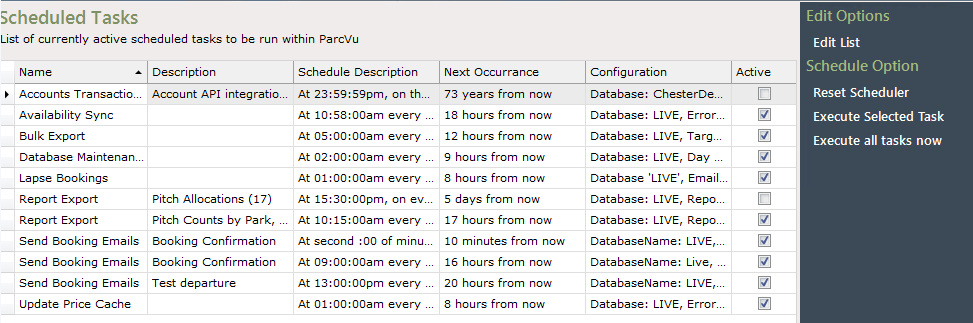
Choose ‘Edit List’ from the navigation menu on the right hand side, then ‘Add Task’
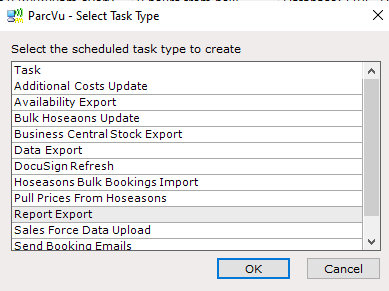
Select the type of task as Report Export
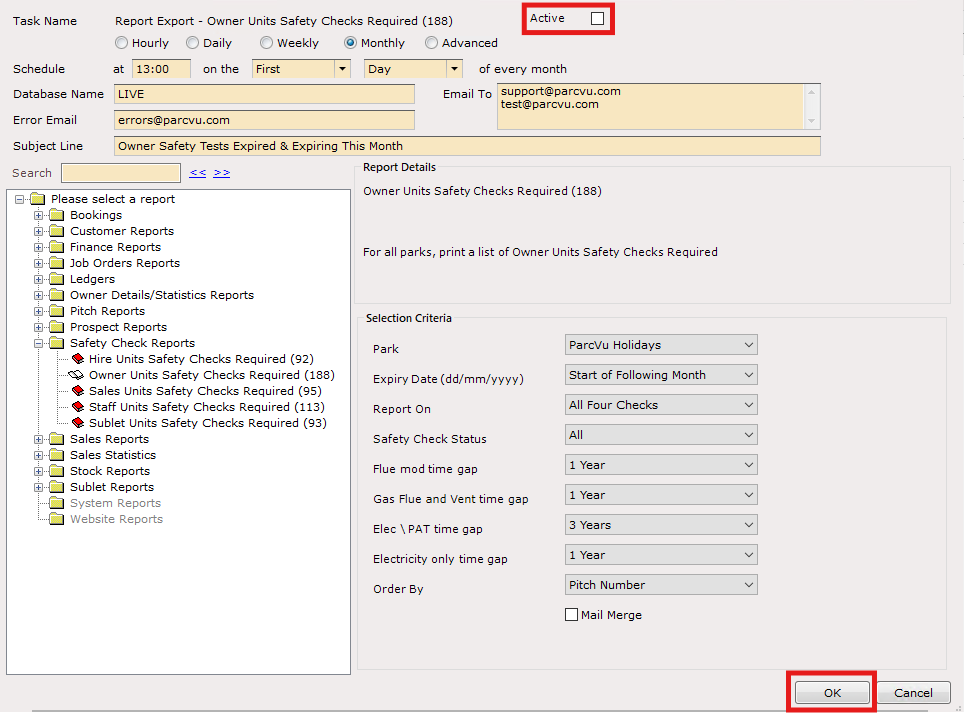
The task configuration screen will be displayed
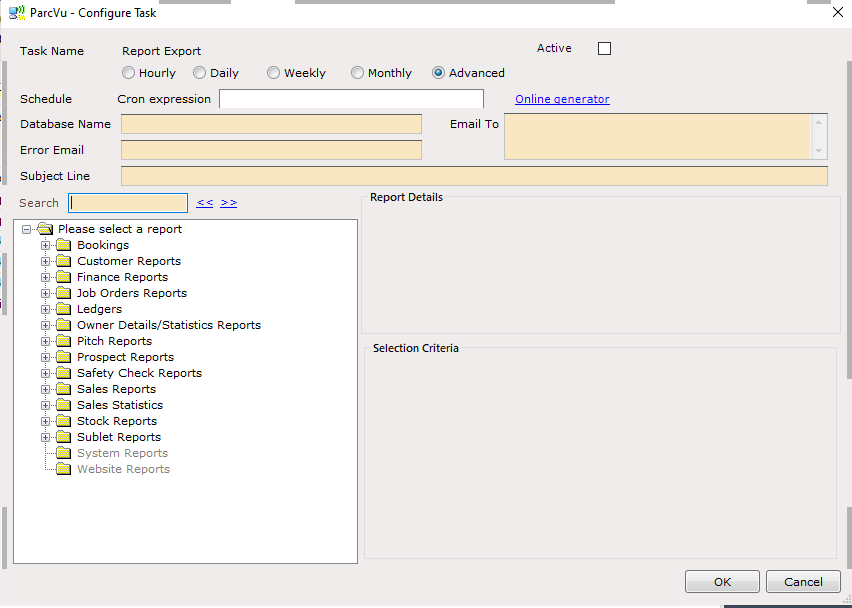
Select the frequency you’d like the Report to be sent - the system defaults to ‘Advanced’ which requires a cron expression to be entered. Selecting one of the standard ranges will allow you to configure the schedule in the UI

Set the Database Name - this should match whatever Database it says at the bottom of your session, this is generally always going to be LIVE

Define who will receive the email by entering email addresses in ‘Email To’ and enter an email address for who should receive notification in the event the task fails, in the ‘Error Email’ line
Sending the report to more than one person? Separate the email addresses by entering them on separate lines
Enter the Subject Line you’d like the email to have
Your configuration to this point will look something like this;

Use the ‘Search’ option or folder explorer to find the Report you’d like to schedule
Once a report is selected, you’ll be able to set the filters required for the report - you’ll notice that rather than being able to enter a specific date, you’re asked for a relative date. This is because the report is going to be run on a different date every time, so a relative date means you don’t have to change it each time
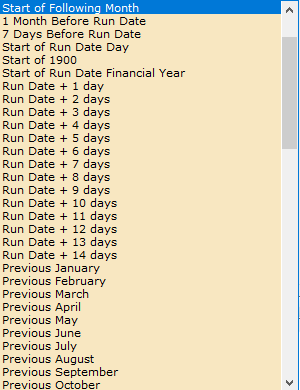
Once you’ve configured all your filters, make the task ‘active’ and click OK
You’ll then need to press ‘Save’ on the navigation menu, so that your new task is added to the Database
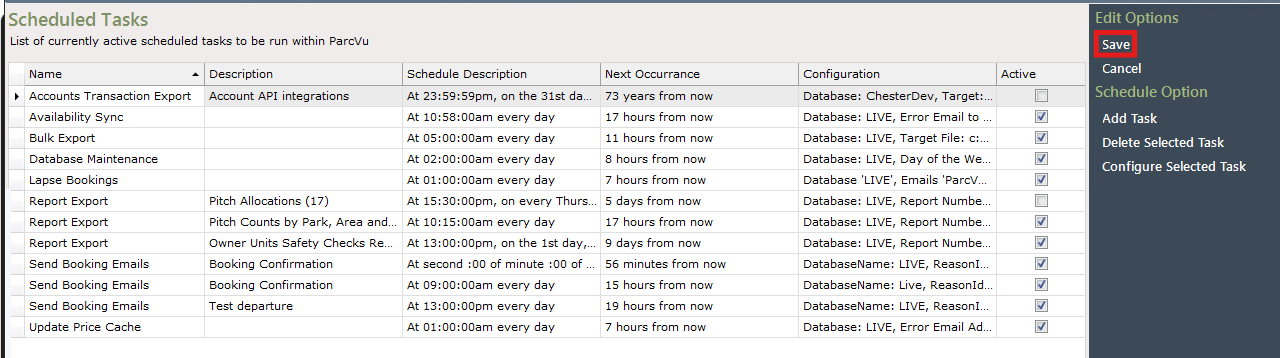
If you don’t receive a scheduled report at the expected time, check that any email addresses provided are valid, that the database is set correctly (a common mistake is to put the Report or Email name in the Database field!) and that the task is active