Templates in ParcVu Online
Last updated 5 months ago
To access this area of the system, the User will need the permissions Allow Access System Sub Menu and Can Maintain Templates
The Templates function in ParcVu Online has been enhanced based off user feedback to provide a much simpler user experience. The Online version has additional functions over what was offered in the Desktop version, including some frequently-requested features such as the ability to attach files to emails!
The available template types include:
Email Templates – Customisable formats for sending emails
Letter Templates – Structured layouts for printed or digital letters
Pre‑set Templates – Ready‑made templates provided by ParcVu for immediate use
SMS Messages – Templates designed for quick and consistent text messaging
Understanding Templates
ParcVu applies specific rules and standards to the creation and maintenance of templates. This document outlines the procedures and best practices for using the template functionality, ensuring consistency and efficiency across all communications.
Key Rules and Best Practices
Use the correct template type: Select Email, Letter, SMS, or Pre‑set templates based on the communication channel.
Control access: Assign template maintenance rights only to authorised users to prevent unintended changes.
Test before use: Preview templates to confirm layout, formatting, and message accuracy prior to sending.
Leverage pre‑set templates: Use system‑provided templates when appropriate to save time and maintain standardisation.
Merge Fields: When creating a template—whether for an individual customer or multiple customers—the system provides a set of merge fields you can insert into your message.
A merge field is a placeholder that automatically pulls information from the system’s data source. For example, using the merge field ACCOUNT_NO will automatically populate the customer’s account number when the email is generated.
Accessing Communication Templates
To access and manage communication templates in ParcVu, follow these steps:
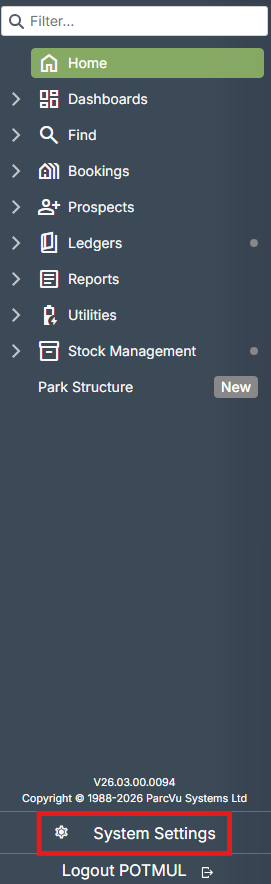
Go to System Settings
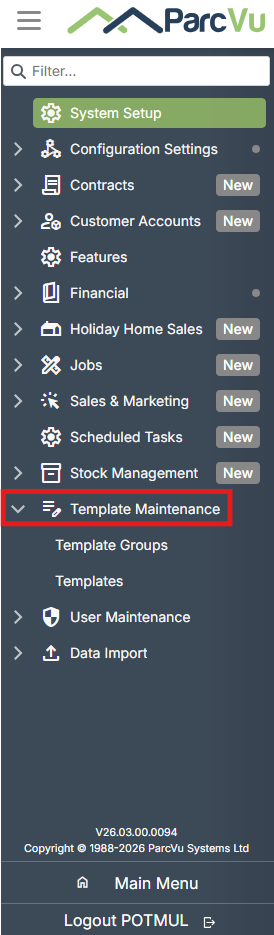
Select Template Maintenance
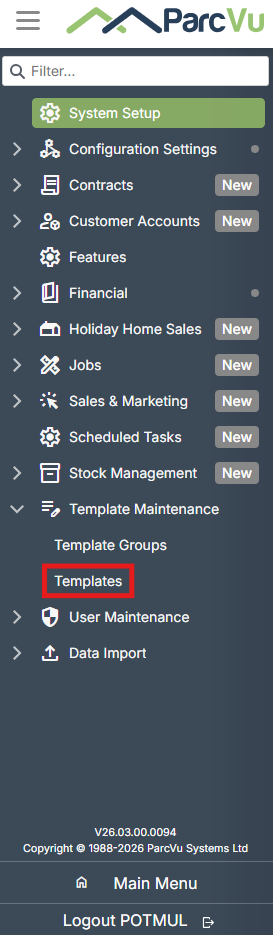
Click on Templates
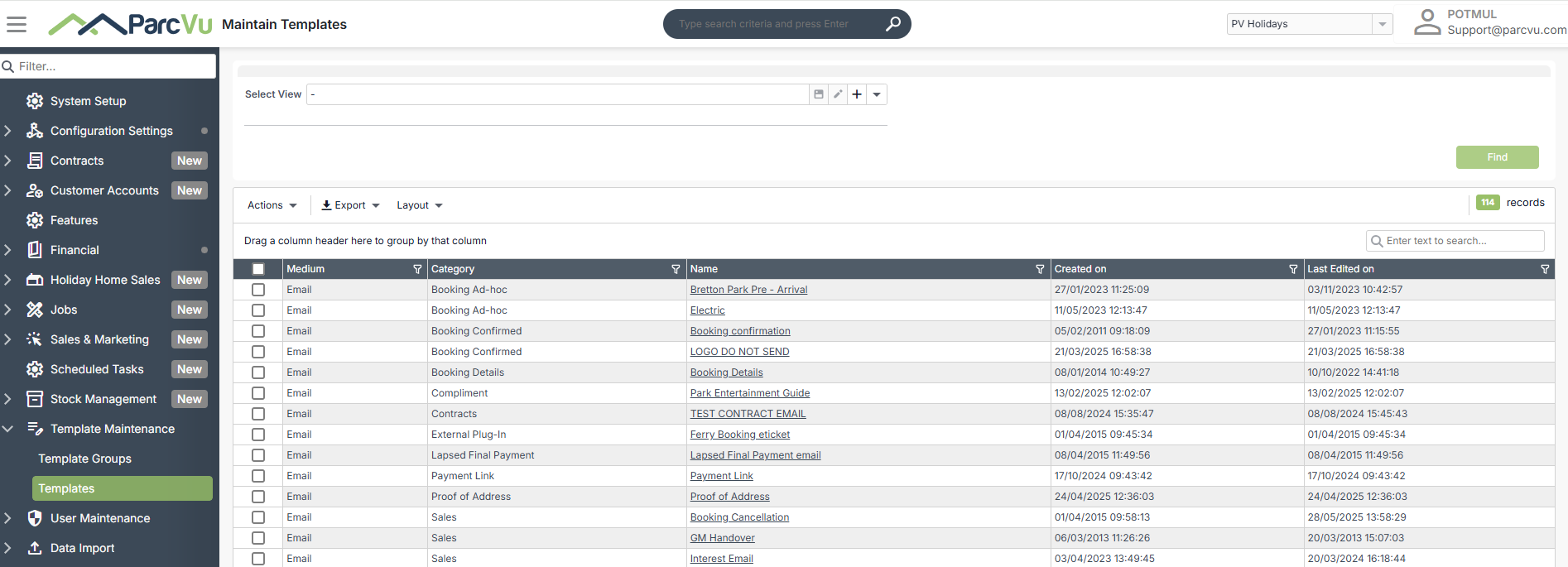
A screen will display all existing templates, along with an option to create new ones.
Screen Overview
Medium – Indicates the type of template.
Category – Shows the category the template is associated with.
Name – The title assigned to the template.
Created On – The date and time the template was originally created.
Last Edited On – The date and time the template was most recently updated
Was this helpful?
Still need help? Share an idea