Send an Individual Letter in ParcVu Desktop
Last updated 3 months ago
Communications are Now Available in ParcVu Online!
This function is now available in ParcVu Online! For the best user experience, we recommend switching to ParcVu Online to ensure you always have access to the latest features. Find out more about Communications in ParcVu Online here: Send an Individual Letter in ParcVu Online
Continue in ParcVu Desktop
From the account Details screen, select ‘Send Letter’ on the Navigation list.
The Letter Template Selection pop up will be displayed. Select a ‘Reason’ using the drop-down list and then select the required Template from the Template drop-down list.
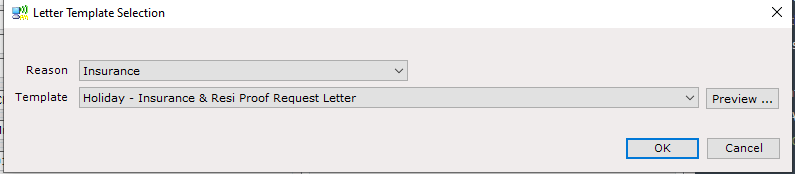
The selected template can be viewed by clicking the Preview button
When the required Template has been selected, click “OK” and the ‘Sending Letter pop up will show that the letter is being created.
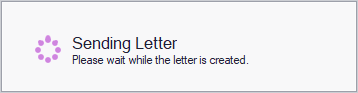
The below message will be displayed indicating that the letter has been produced.
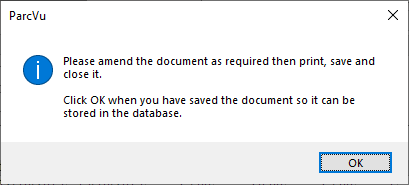
The Letter will be either behind the ParcVu session or on the bottom toolbar, open it and make any required amendments, please note any changes will not update the global template.
If the Letter is behind your session and you cannot see it, hold down ‘Alt’ and ‘Tab’ on your keyboard and the letter will be brought forward.
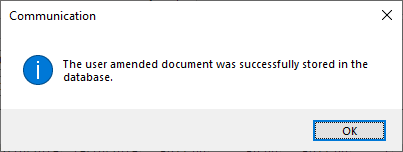
Next, Print, Save and close it and click ‘Ok’ to the message. A further message will be displayed confirming that the Letter has been stored in the database.
This letter can be viewed again from the Communication History on the Account details screen. To view the saved document, navigate to the account details screen by clicking “View Account” and select ‘Communication History’ from the Navigation list.
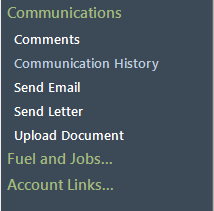
This will display all previous correspondence with the customer; any of these can be viewed by clicking on the required document in the list and selecting ‘View Letter’ from the Navigation list.
