☑️ Print a ‘Rolling Statement’ in ParcVu Desktop
Last updated 7 months ago
This provides a ‘Credit Card’ type Statement showing ‘Payments In’ and ‘Payments Out’. ‘Payments In’ are shown with a Minus (-) in front to indicate that the amount has been Credited to the account, the statement will show all entries since the last time the statement was printed.
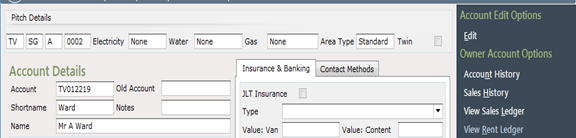
From the Owners ‘Account Details’ screen, select ‘View Rent Ledger’ from the Navigation list on the right.
Select ‘Print Rolling Statement’ from the Navigation list on the right.

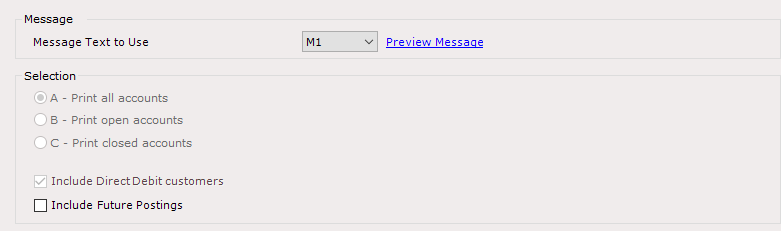
If any ‘Future Postings’ on the ledger are to be included on the statement, click into the ‘Include Future Postings’ option to select it.
Future Postings might be things like Pitch Fees which are billed to the Ledger as a future-dated invoice
When ready, click ‘Start’ the navigation list.

Select the required ‘Printer’ to send the Statement to and then click ‘OK’.
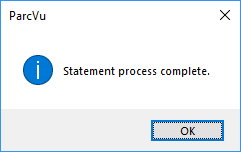
The Statement will now be Printed, click ‘OK’ to the message showing ’Statement Process Complete’
The Statement will be printed to the selected printer.
Click on the arrow at the top left of the screen to return to the Owners Rent Ledger account.

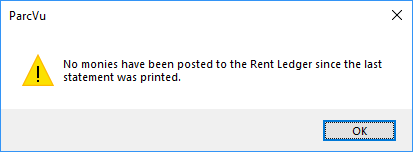
If ‘Rolling Statements’ is selected and there have been no further postings since the last time it was printed the below message will be shown: