☑️ View and Use Park Map in ParcVu Desktop
Last updated 10 months ago

Found on the Home Main Menu, there is an option in the ‘Search’ section called ‘Park Map’

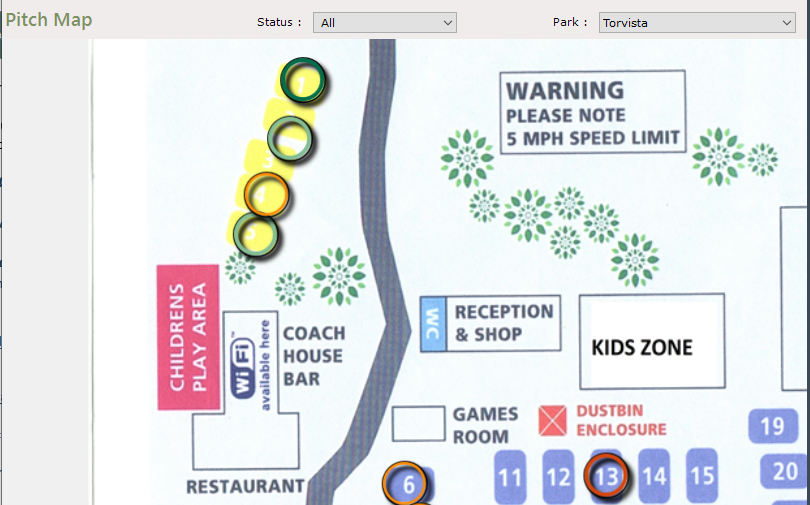
When a Map has been uploaded (see Upload a Park Map in ParcVu Desktop), selecting this option will display the Map that has been uploaded for a Park.
When a Map has been updated and the Pitch Markers set (see Set Pitch Markers on a Park Map in ParcVu Desktop), the map can be used to view and access Pitches on the park.
Select ‘Park Map’ from the Home Screen and the Park Map will be displayed.
Park Users will only be allowed to access their own Park map, Head Office Users can select which Park Map they wish to View/Edit.
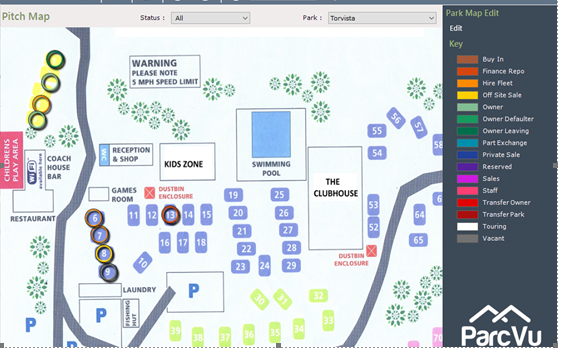
The map has a ‘Key’ which shows the colours used by the Pitch Markers on the Pitches to show their status, i.e. Owner, Sales Van, Hire Fleet, Touring etc.
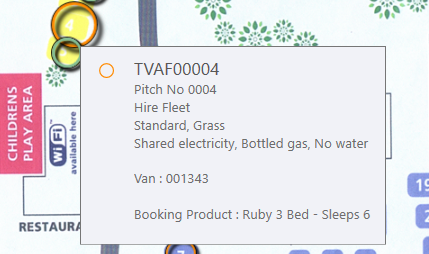
Hovering over a Pitch/Van will display the Pitch Status, Pitch Number, Pitch Details, Van Number and the Booking Product if the Van has had a Booking Product assigned and Owner Details if appropriate.
Double clicking on a Pitch Marker will take you to the Pitch Details screen.
Filtering Pitches on the Park Map
There is a ‘Status’ filter dropdown at the top of the screen.
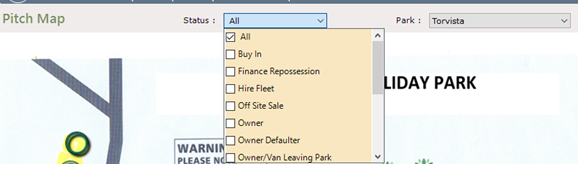
Selecting one or several statuses will change the details displayed on the map. It will then only show the selected Pitch Status Markers.
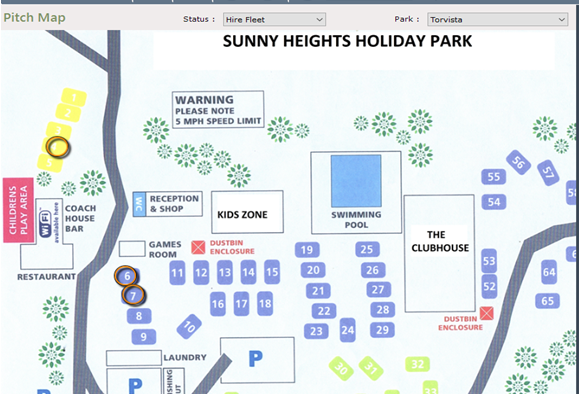
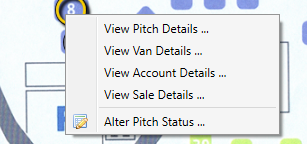
Right clicking on a pitch Marker will show other options:
Owner Pitches on the Park Map
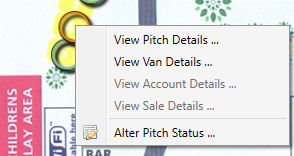
Hire Fleet Pitches on the Park Map
Zooming on the Park Map
At the bottom of the screen there is a Reset Map zoom slider which allows the map to be made bigger, if you left click on the map with your mouse and hold it down the map can be moved around the screen and zoom into a certain area.