Creating a New Email Template in ParcVu Online
Last updated 4 months ago
To access this area of the system, the User will need the permissions Allow Access System Sub Menu and Can Maintain Templates
From anywhere in ParcVu Online, go to System Settings > Template Maintenance > Templates
To create a new email template for sending messages to one or multiple customers, follow these steps:
Navigate to Actions
Select New Email
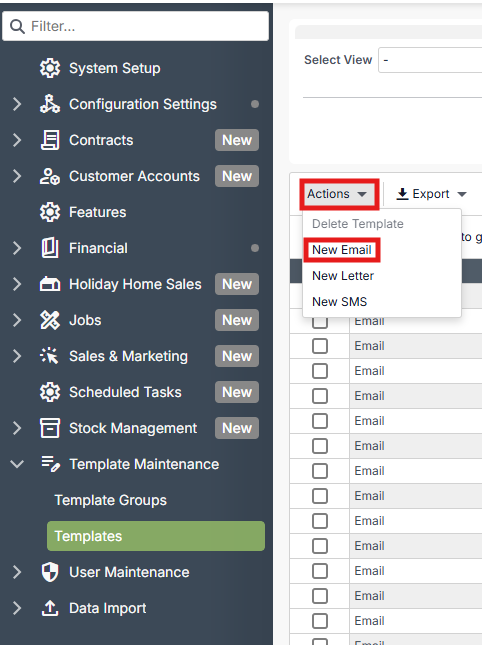
A screen will open displaying the setup page for creating a new email template.
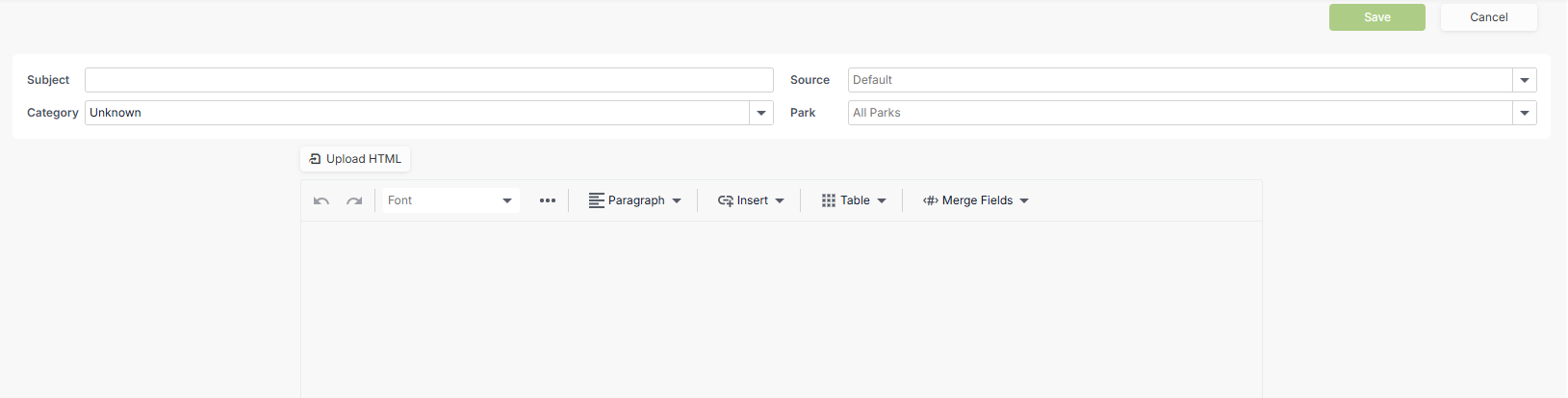
Enter the Subject field (this will be the title of the template).
Open the Category drop‑down menu and select the appropriate category.
Open the Source drop‑down menu and choose the correct source.
The Source determines where the system retrieves the merge fields from. Each template can only use one Source—it's not possible to combine multiple Sources within a single template
You can find out more about what merge fields are available for each source here: Available Merge Fields
Use the Park drop‑down menu to specify whether the template should apply to a particular park or be available for all parks.
Click inside the body of the email template to begin composing your message, and place your cursor where you want to enter text.
Type your content, using the Merge Field option to insert any fields that need to auto‑populate.
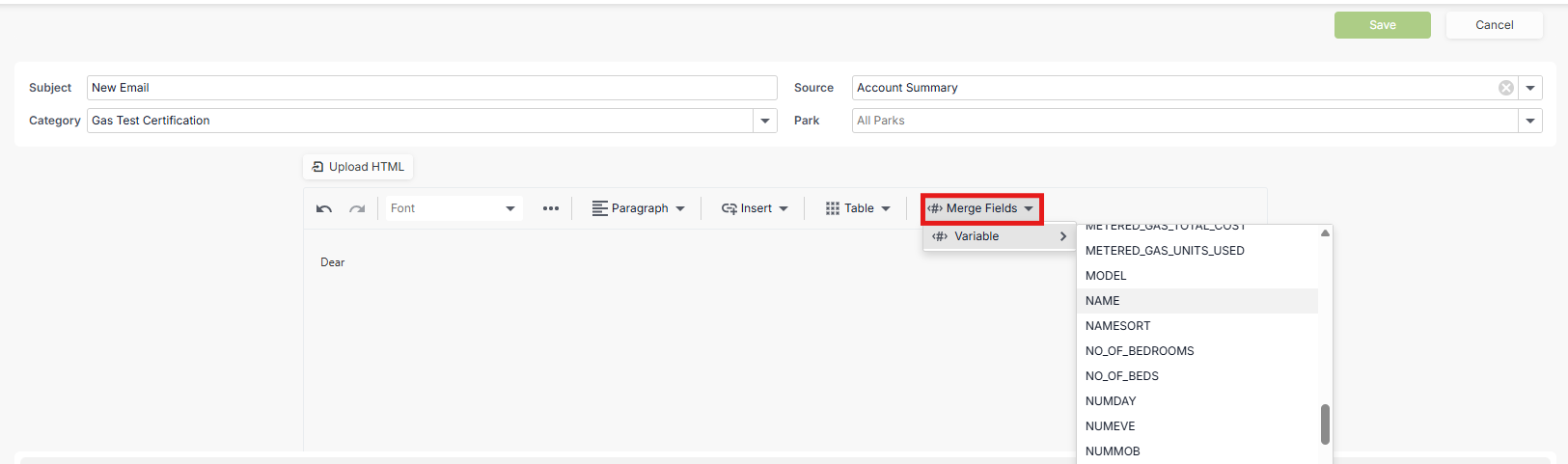
If you want to include images, you can copy and paste them directly into the text box, upload them from a saved file, or insert them using HTML.
You can also add a hyperlink if required.
Once you have finished creating your template, select Save.
Your template will now be stored in the database and will be available to use when sending communications through an individual customer account or via bulk communications.
Looking to do something more complicated with your emails? ParcVu Online offers the option to Upload HTML when creating an email Template, allowing you to produce more complex emails to send via ParcVu Online. HTML will be uploaded in a Read-Only format.
This functionality was added in V26.02 - if you’re running an older version of ParcVu Online, speak to your Account Manager about arranging an upgrade!