Bulk Communications in ParcVu Online
Last updated 3 months ago
Bulk communications have been enhanced in ParcVu Online, and are generated from the Find screens rather than a separate menu option. This function is available in both the Find Account and Find Prospects screens, by using the filters to select the desired records
From anywhere in ParcVu Online, go to Find then choose from Accounts or Prospects
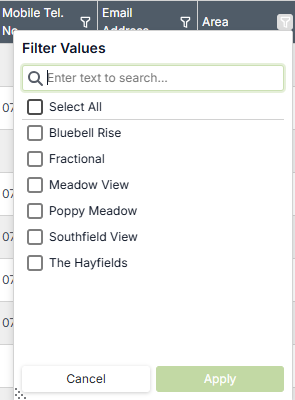
Use the filters to find the initial target audience and then click Find
The initial filters available for Accounts are

Park
Include Bookings Accounts - Choose “no” to only communicate with Owners, “yes” to only communicate with Holidaymakers or “All” if you need to send a message to all contacts
Deleted - Choose “no” to only communicate with current contacts
Include Sales Accounts - Choose “no” to only communicate with Holidaymakers, “yes” to only communicate with Owners or “All” if you need to send a message to all contacts
Limbo - Choose “no” to only communicate with current Owners (ie not Leavers or cancelled sales) - remember that Bookings Accounts are always limbo, so ensure this is set to “yes” to include Holidaymakers!
Non Account Holder - Use this filter if you utilise the Non Account Holder functions and need to communicate with those contacts
Accepts Marketing - You should take care with this filter, as the implications of Data Protection and GDPR can be extremely serious. If you are unsure whether the communication you’re planning to send could be considered marketing, please consult with your Data Protection Officer (DPO) prior to sending the communication. ParcVu Support cannot advise on GDPR, you must consult your own DPO
The initial filters available for Prospects are

Park
Include Deleted Prospects - Check this box if you’d like to include Prospects who have been deleted. You should take care with this filter, as the implications of Data Protection and GDPR can be extremely serious. If you are unsure whether the communication you’re planning to send could be considered marketing, please consult with your Data Protection Officer (DPO) prior to sending the communication. ParcVu Support cannot advise on GDPR, you must consult your own DPO
Created Date
Include unassigned Sales People - Check this box to ensure all Prospects receive the communication regardless of whether they have a Salesperson assigned
Once you have your initial dataset, you can filter further using the Filters in the table, to refine your target audience if needed - for example, if you wanted to only send to Owners in a certain area of the Park
Select the Account(s)/Prospect(s) to send the Communication to using the checkbox in the first column
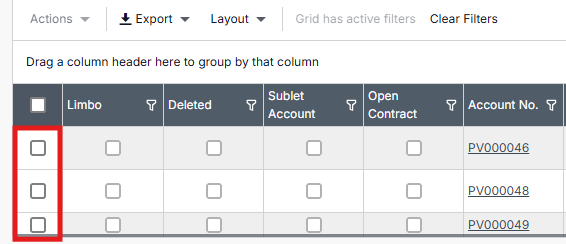
You can select all Accounts or Prospects by ticking the box in the column header
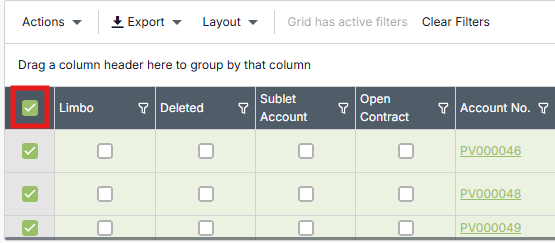
Once there is at least one Account selected, the Actions menu activates
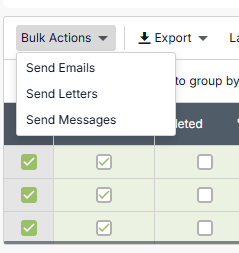
The communication methods available are: -
Send Emails
Send Letters
Send Message
Communication options are only available if you have the Feature enabled as part of your ParcVu Online subscription. If you don’t see any/all Communication options when selecting Accounts or Prospects, contact ParcVu Support to check if your package includes the relevant Communications module
Select the 'Contact Type' - the communication will result in being sent successfully only if these communication methods are selected within the account details. For example, if a Customer does not have the Email Contact Method set, they will not receive an email

The Category will determine which Templates you can select - if you don’t see the Template you’re expecting, ensure that you have chosen the correct Category
For Marketing, the 'Willing to accept marketing' option must be ticked within the 'Account Details' screen, and the contact method needs to be selected within the 'Marketing Contact Method' section'
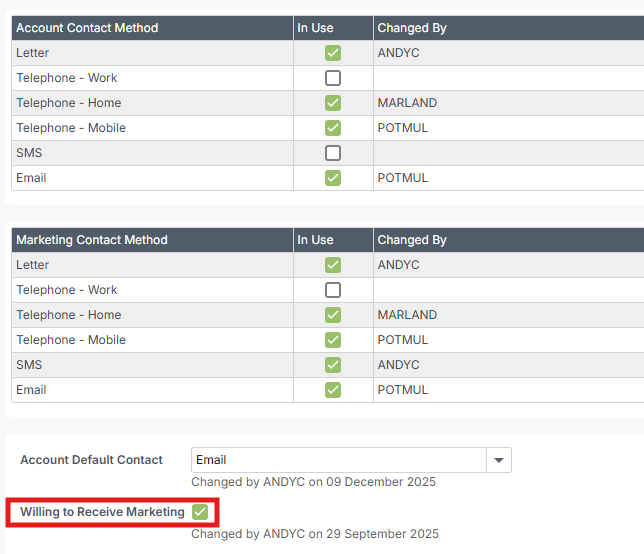
If the 'Willing to Accept Marketing' flag isn't ticked within the account, then you'll receive this error on the individual account
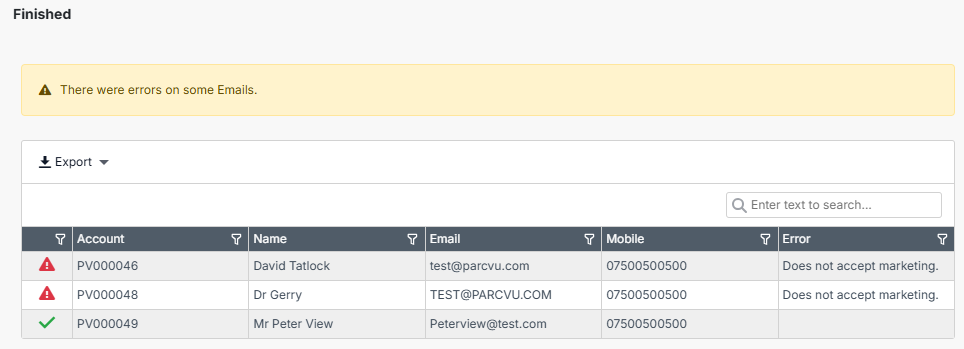
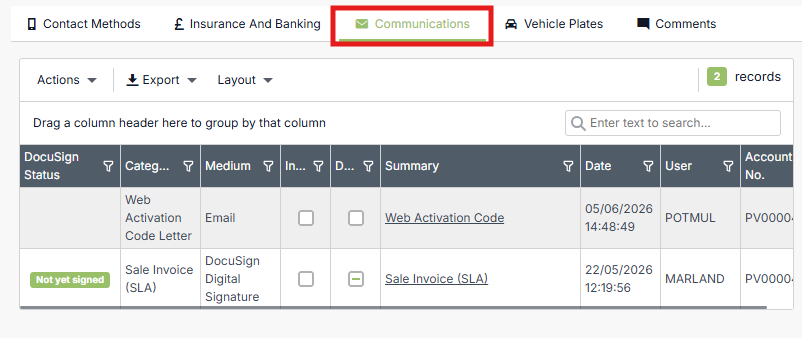
For Accounts where the Communication sent successfully, it will be visible against the Communications tab in their Account