☑️ Contract Charges Table in ParcVu Desktop
Last updated 7 months ago
Contract Billing Is Now Available in ParcVu Online!
This function is now available in ParcVu Online! For the best experience, we recommend switching to ParcVu Online to ensure you always have access to the latest features
Continue Using Desktop:
To access this functionality the User will need to be a Head Office user, and have the Allow System Maintenance Menu permission
When a new Contract is created, the system must determine what Charges apply and what the value of those Charges should be. To do this, it looks at the Contract Charges table
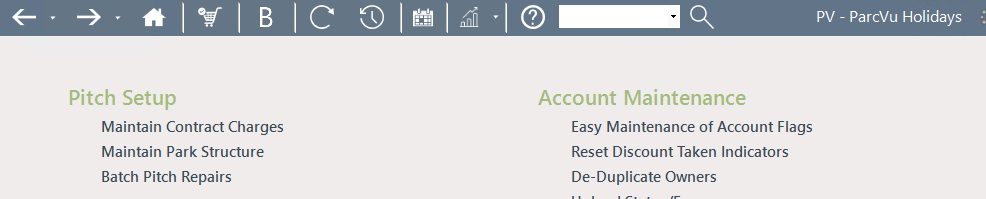
From the Home screen, go to System Maintenance Sub Menu > Maintain Contract Charges
You must have a Park selected in the top right hand corner for this option to be available. If set to ‘All Parks’, this option will be greyed out
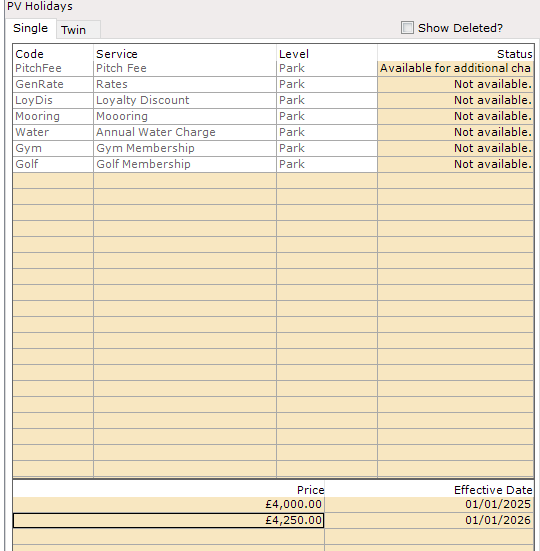
The ‘Contract Charges’ table will be displayed with all the Park Areas listed down the right-hand side of the screen
Charges available via the AIC billing process will be shown here, along with their current status
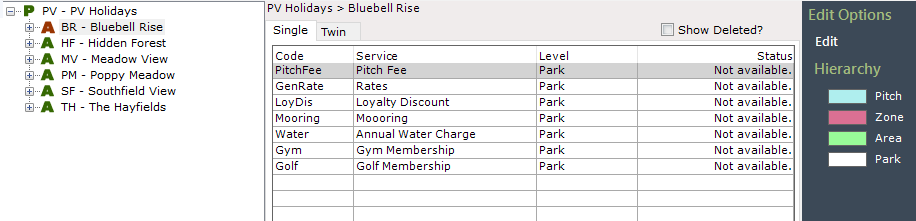
Its important to note that there are two types of Charges - Single and Twin

These relate to the pitch types, it’s important to check that both tabs have values entered and that when querying an AIC invoice or updating the Contract Charges Table, the User checks both tabs
A common error is that the ‘Twin’ tab has not been updated, therefore the Charges on the AIC for twin pitches are incorrect
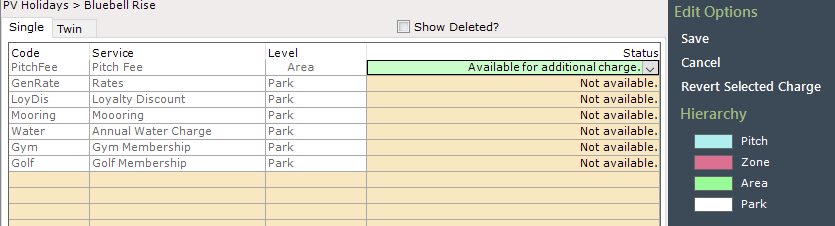
Adding or Editing Contract Charges in ParcVu Desktop
To add or amend a Charge, select ‘Edit’ from the Navigation list on the right of the screen
Click the Charge you want to update, and the bottom section will show any previously entered prices. Charges have both a Price and an Effective Date. This allows you to see the history of a Charge and can help to troubleshoot when a Charge may be higher or lower than expected - often Customers who purchased a long time ago will be on a lower Charge than newer Customers
In order to be available in the AIC process, the Status must be Available for additional charge
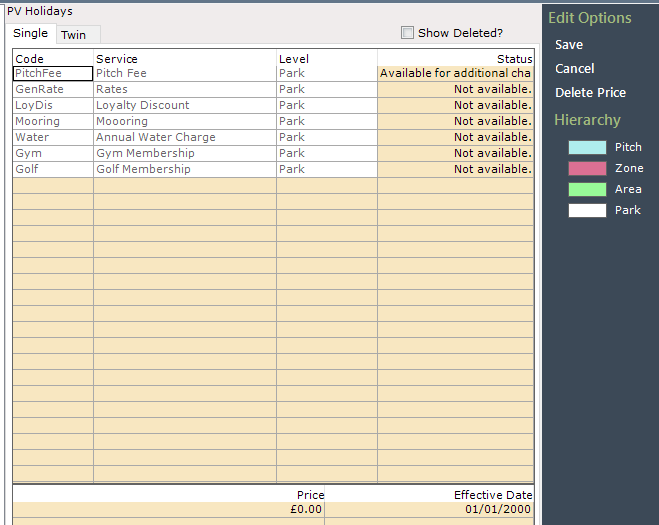
If you’re entering a new Charge for the first time, the Price will default to £0 and the Effective Date will default to 01/01/2000. It’s fine to leave the date like this if you want to, as this is the most recent Charge so it’s the one the system will find - best practice would be to update this to the date that your fees actually became this price, so that your history is accurate
If you’re updating a Charge, you can choose to either overwrite the existing Charge or enter a new row - best practice would be to enter a new row, so that you retain the history for future reference. The date will always default to 01/01/2000 - be sure to update this so that the row appears in the correct place and is picked up as the most recent Charge
Click Save on the right hand side once your changes are made
Remember to enter pricing for both Single and Twin pitches!
Charge Levels
Charges can be set at the Park, Area, Zone or Pitch level. This is an important distinction as it will determine which Charge will be picked up by AIC, and will require updating at each level if you choose to use multiple different charge levels. Remember, values must be set for both Single and Twin tabs at each level you choose to use.
When deciding the Charge the billing run should use, the system looks at the Contract Charges starting from the Pitch level, then works it’s way up until it finds an applicable Charge. The hierarchy is: Pitch > Zone > Area > Park. For example - if there is a Charge set against a specific Pitch, the system will use this Charge regardless of anything entered at Zone, Area or Park level. If there is no Charge set against a Pitch (which is generally the case), then it will check at the Zone level, if it doesn’t find one there, the Area level, then finally the Park level
If an AIC invoice has an unexpected value, you should check the Contract Charges are correctly set - in some cases, a Charge has been set up against a Pitch or Zone when only the Area or Park should be used
When deciding how to structure your Charges, you should keep this as simple as possible, with the least amount of variances your business can support;
Set Charges at the Park Level when everyone on Park pays the same amount, most people on Park pay the same amount, or when you need to have a default value (this means there should always be a value for a Charge that applies to all Pitches - for example, Pitch Fees should always have a value at the Park Level)
Set Charges at the Area Level when the people within that Area pay a different amount to the rest of the Park, or only people in that specific Area pay a Charge. For example, if an Area is considered a Premium Area and they pay higher Pitch Fees than the normal Park Charge. Owners in a Lakeside Area are charged a Mooring fee when other Areas are not.
Set Charges at the Zone Level when the people within that Zone pay a different amount to the rest of the Area, or only people in that specific Zone pay a Charge. For example, if some Pitches within a Zone are Premium and others are Standard, you can set a different Pitch Fee for the Premium Zone
Set Charges at the Pitch Level when whoever occupies that Pitch pays a different amount to the rest of the Park. For example, you have a Pitch which can only accommodate very small Holiday Homes and you want to charge a lower Pitch Fee for that specific Pitch than for others in the same location