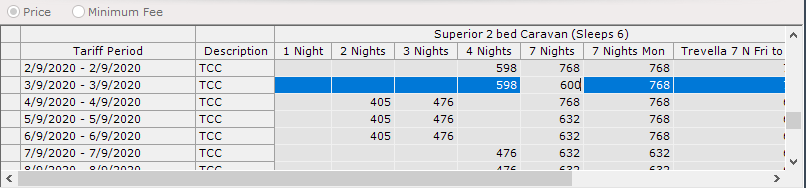
Dynamic Pricing Management in ParcVu Desktop
Last updated 4 months ago
The Dynamic Pricing Management function in ParcVu Desktop is only available to existing customers who previously signed up for the legacy ParcVu Bookings module. New subscribers will be offered enrolment in the Booking Experts module. Existing customers using legacy Bookings will be offered the opportunity to upgrade to Booking Experts - contact your Account Manager for more information
The Dynamic Pricing Management screen allows targeted monitoring of Occupancy and updating of Average Tariff values
From the Home Screen, go to Bookings Sub Menu > Dynamic Pricing Management
This screen allows a user to see Units Not Yet Booked, Occupancy as a percentage and Average Tariff calculated as daily values. The Average Tariff calculates the value of the main booking product only and considers any promotions and discounts applied. It divides the value of the main booking by the number of days of the booking to work out the daily average.
A user can search up to 6 booking products on this screen and can edit the prices for the booking products in the lower grid.
Any user can view this screen, but to edit and amend pricing, the user must have the Allow System Maintenance Menu user permission
The Dynamic pricing Management screen allows a ‘Park’ a ‘Date and Duration’ and either ‘Accommodation’ or ‘Touring’ to be selected to view, along with the required Booking Product, or Products.
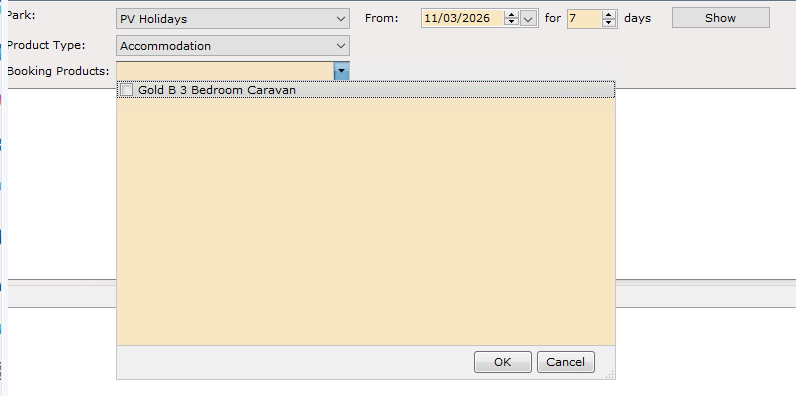
Filter to the required criteria then click ‘Show’
The screen will be displayed:
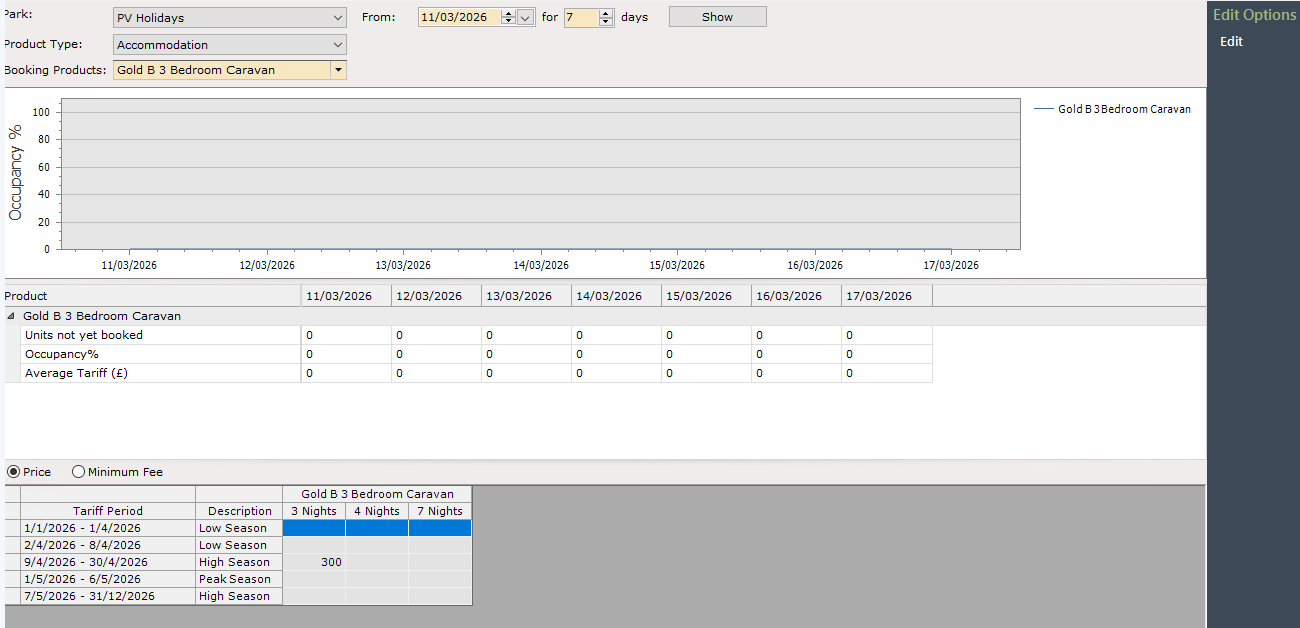
The results displayed will show:
‘Occupancy’ for the selected Booking Product(s) for the selected date range.
Number of Units Not Booked, Occupancy and Average Tariff for the selected Booking Product(s) for the selected date range.
The current Pricing in Booking Tariffs grid for the selected Booking Product(s)
When more than one Booking Product type is selected the screen will display as below:
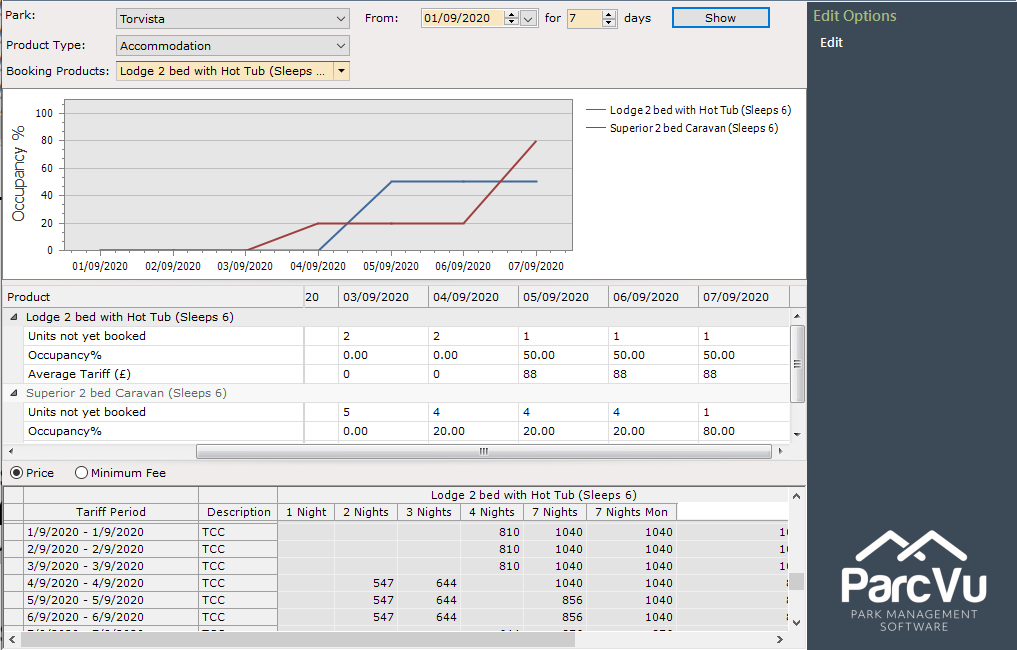
Hovvering over the Occupancy pane shows the Booking Product detail and occupancy level for the selected date.
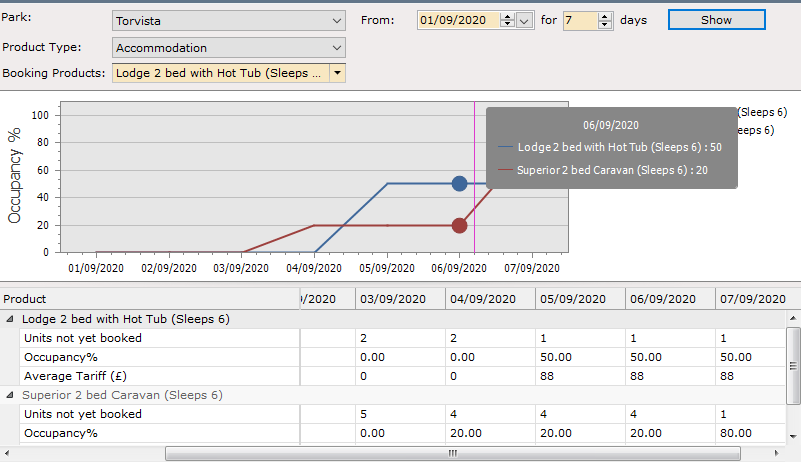
Clicking on a Product in the Product pane reloads the Tariff grid below to show the selected product and the current tariff
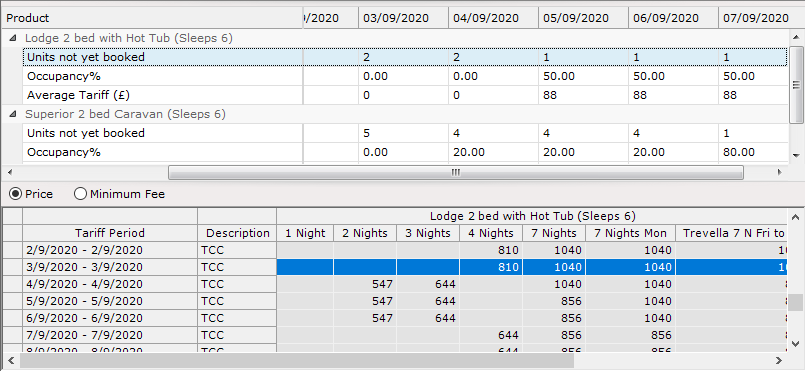
Clicking on the Occupancy line in the Product pane also does this.
Selecting Edit and overwriting a Tariff will allow updating of pricing, select ‘Save’ when finished.