Bulk Import SUN Bookings in ParcVu Desktop
Last updated 4 months ago
The Sun Imports function in ParcVu Desktop is only available to existing customers who previously signed up for the legacy ParcVu Bookings module. New subscribers will be offered enrolment in the Booking Experts module. Existing customers using legacy Bookings will be offered the opportunity to upgrade to Booking Experts - contact your Account Manager for more information
From the Home Screen, go to System Maintenance Sub Menu > Bulk Import Bookings
The ‘Bulk Bookings Import’ screen will then be displayed.

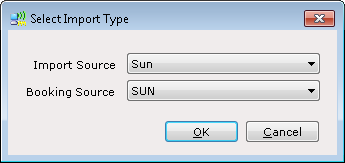
Select ‘Open Import File’ from the Navigation list on the right, select the ‘Import Source’ and the ‘Booking Source’ and click ‘OK’.
The File Locater will be displayed, select the required ‘Import File’ from the list by clicking on it to highlight it and then click ‘Open’.

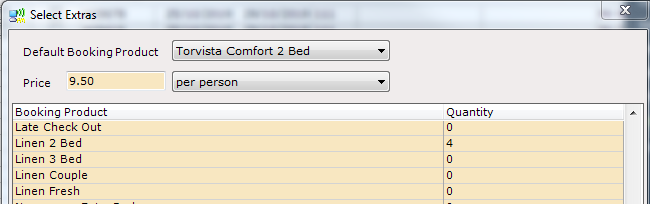
The ‘Select Extras’ pop up will be displayed, use the dropdown list in the ‘Default Booking Product’ field to select the Booking Product to import the Bookings into.
Next, enter the ‘Price’ for the Bookings, this can be done by ‘By Person’, e.g. £9.50 per person or ‘By Unit’ e.g. £38.00 per unit, or whatever is the correct value for the bookings.

If any ‘Extras’ need to be added to the bookings then these can be selected from the list,
Any Extras selected at this point will be added to ALL the Bookings on the Import file, only use this option if the Bookings should all have the same Extra
Extras can be added manually to individual bookings after import.
Click ‘Ok’ when ready to import the bookings
A message will appear showing that the File and Data are being loaded.
The Booking information from the Import file will then be displayed in the ‘Bulk Booking Import’ screen.

The column on the left of this screen headed ‘Can Import’ shows whether the bookings can be imported into ParcVu or not. If there is no tick against a Booking in the list, this indicates that the booking cannot be imported.
To find out why a booking cannot be imported, click onto the line of a booking which is not ticked - the reason it cannot be imported into ParcVu will be displayed at the bottom of the grid.
You can either address any issues on the system straight away or continue with the import and then re-import the other Bookings at a later point
Select ‘Validate’ and then ‘Import’ from the Navigation list on the right and all the Bookings that can be imported into ParcVu will be imported.
The Import screen will then show the bookings that have been imported as ‘Ticked’ in the ‘Already Imported’ column and the ParcVu Booking Reference number that was created for the bookings will be displayed in the ‘Existing Reference’ column.

Before you can use the Sun Import process, you must have each Park Code mapped, enable Sun Imports and map the Linen product in Client Configuration.
Find out more about this here:
Set Up Park Information for Sun Imports in ParcVu Desktop
Configuration Settings for Sun Imports in ParcVu Desktop