☑️ New Customer Sale
Last updated 8 months ago
You can either choose to start a Sale from a Pitch with a Sales unit on it, or from the unit itself
Starting A New Customer Sale from a Pitch
From the Main Menu, select ‘Pitch’, use any of the available options to locate the Pitch which has the Sales Van located on it
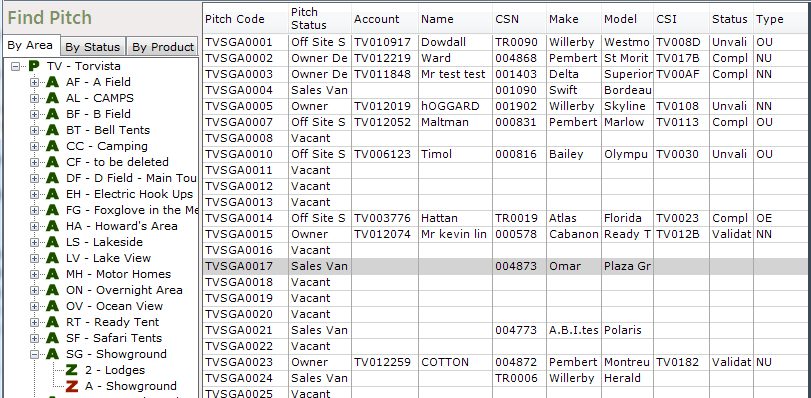
Double click on the required Pitch in the grid and the ‘Pitch Details’ screen will be displayed.
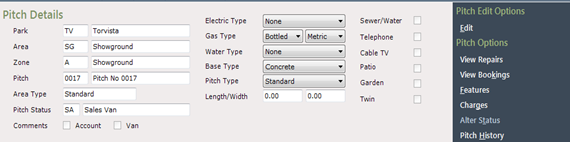
Select ‘Alter Status’ from the Navigation list on the right, then select ‘OW’ Owner, from the options list.
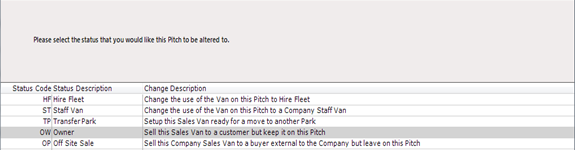
Click ‘Next’ at the bottom of the screen.
Starting A New Customer Sale from a Holiday Home
Navigate to the Van Details screen of a Sales Unit, and select Sell Van

Creating or Selecting the Account
If you don’t think the customer has an Account already, select ‘Generate a new account’. Select ‘Use an existing account’ for a person whose details may already be in the system, for example: an ex owner, or a customer with a previous Cancelled Sale etc.
Then click ‘Next’.
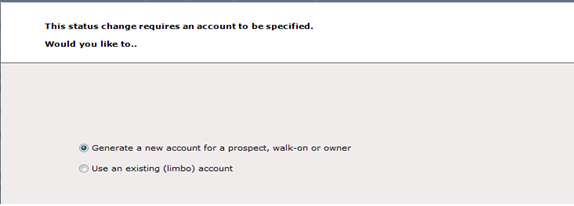
If ‘Generating a New Account’
Enter the postcode then click ‘next’ at the bottom of the screen.
The system will return details of existing people of the Post Code entered
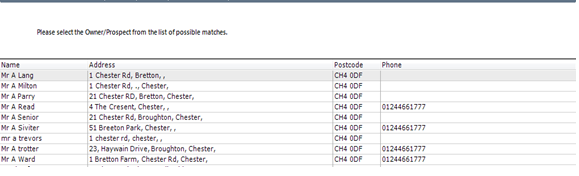
If the customer details show in the list, select the row, uncheck the “Not in List” box at the bottom of the screen checked and then click ‘Next’

To create a New Account for the customer, click ‘Next’ at the bottom of the screen.
If the customer details aren’t in the list, leave the Not in List box checked and click Next - this will create a new blank account details page for you to fill in
The system will automatically generate an ‘Account Number’ for the ‘New Owner’.
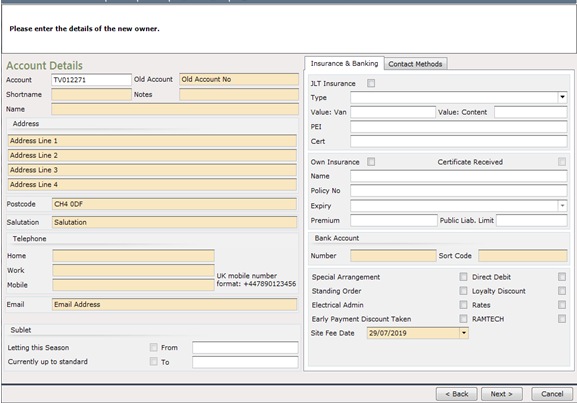
Enter a ‘Short name’, (use the specified Company format for this).
Complete all the highlighted fields re: Name & Address details.
In the field marked ‘Salutation’, you need to enter the name in the way you would like it to appear on correspondence, after the word ‘Dear’ i.e. if the Customers name is Mr A Smith, the ‘Salutation’ field should be entered as either just ‘Mr Smith’ or maybe their first name if preferred.
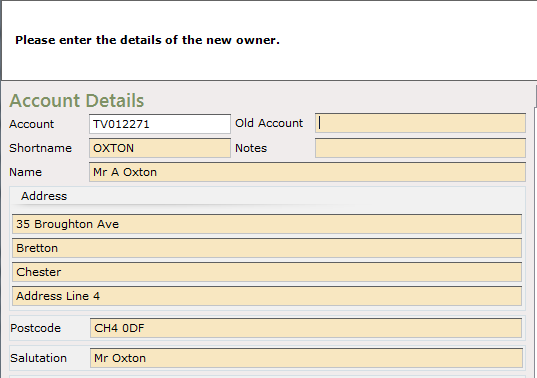
If known, click into one of the ‘Insurance’ boxes to confirm whether the customer is taking Company insurance or has their own, complete all available Insurance details.
Click into the boxes to ‘Tick and Flag’, the relevant account information on, ‘Loyalty Discount’, Rates etc. The ‘Site Fee Date’ will be the date of the Sale and should not be changed.
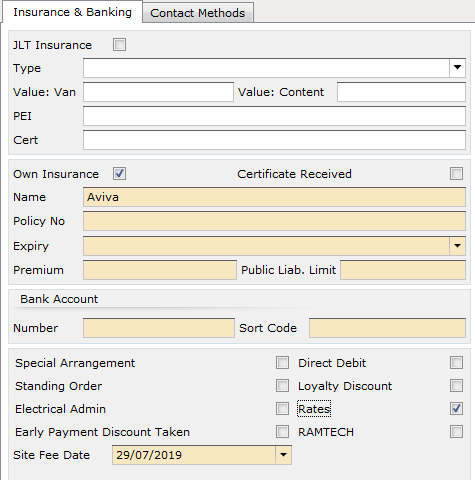
Click onto the ‘Contact Methods’ Tab.
Click into the ‘Contact Method’ types for this customer, for Both Account contact and Marketing contact as appropriate;
To choose a Contact Method, you must have the relevant information on the Account - for example, to select marketing by Email, the Account must have an email address entered
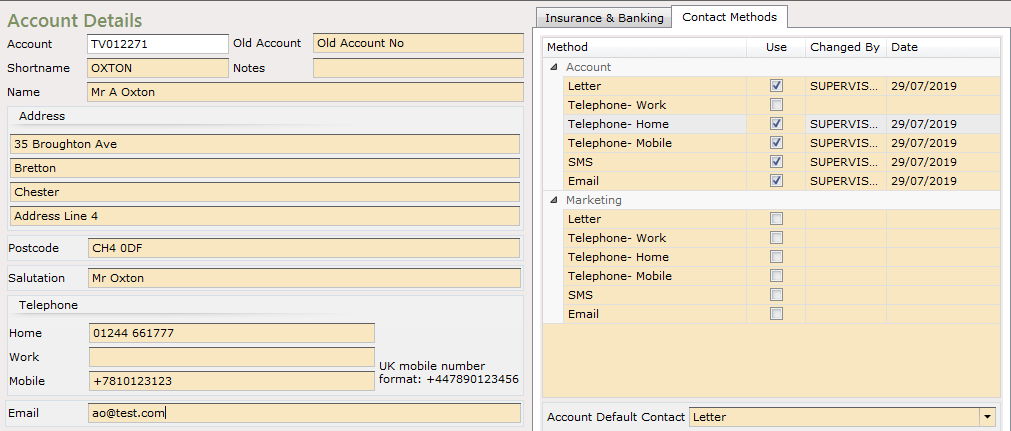
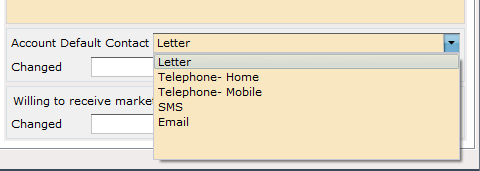
Select the ‘preferred’ contact method from the Drop-down list.
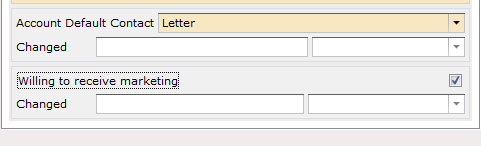
If the customer confirms they are willing to receive marketing, set the flag for ‘Willing to receive Marketing’ by clicking into it to ‘tick’ it, otherwise leave this field blank.
When finished, click ‘Next’ to show the ‘Sales Details’ screen.
If selecting an ‘Existing (Limbo) Account’
Find the ‘Existing limbo Account’ using the search facilities displayed i.e. Postcode, Short name etc, and click ‘Find’.
Click on the required details from the list displayed to highlight them and Un-tick the ‘Not in the list’ box at the bottom of the screen.
Then click ‘next’. The Owners details will now be displayed, check all details are still correct and amend where necessary. Click into one of the ‘Insurance’ boxes to confirm whether customer is taking Company insurance or has their own, complete all relevant Insurance details. Check and amend the ‘Ticks and Flags’ boxes for ‘Loyalty Discount & Rates. The ‘Site Fee Date’ should be the date of the Sale.
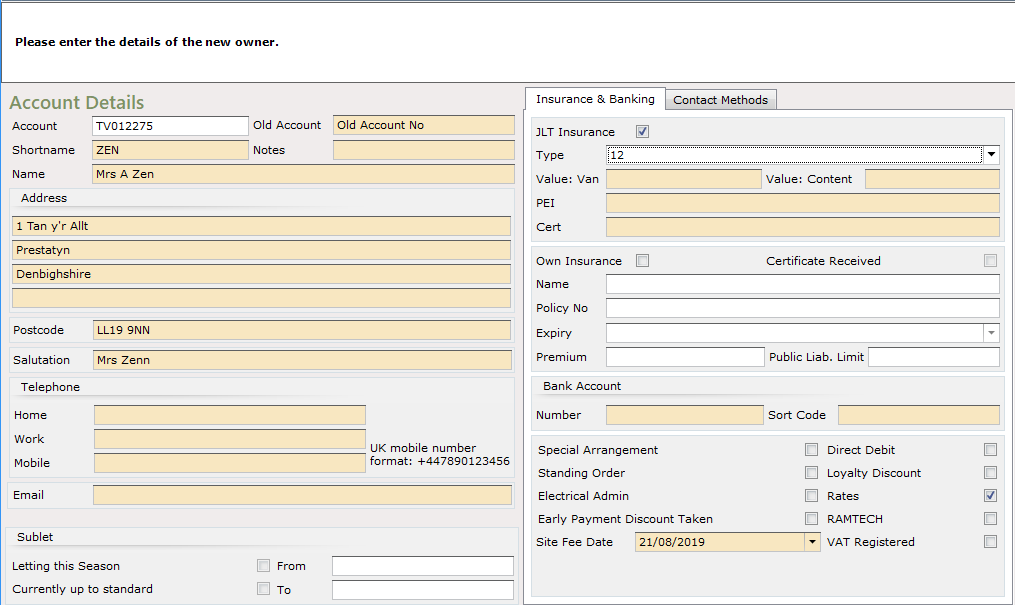
When finished, click ‘next’ this will take you to the ‘Sales Details’ screen.
Sales Details
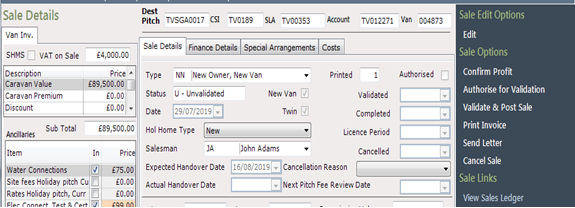
The ‘Sales Detail’ screen shows across the top for this sale the CSI - Caravan Sales invoice number, SLA - Sales License Agreement Number, Account - Account Number and Van - Van CSN Number.
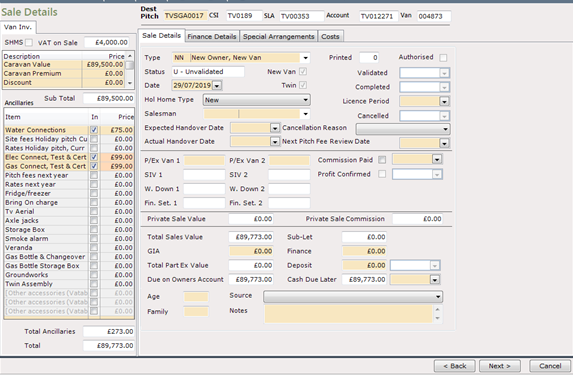
On the left hand side, enter the Caravan Value (the Sale Price), if not already showing, leave the caravan premium box blank. The VAT field figure is automatically calculated by the system. Enter/amend the ‘Ancillary Charges’ as appropriate, this can also be done via the ‘Costs’ tab at the top of the screen.

If you used Priced Stock to price up the unit prior to sale, this information will populate automatically
On the main area of this screen to the right of the pricing section check the details are correct for the ‘Type’ of unit, today’s date will be automatically entered, check that the ‘Hol Home Type’ correctly reflects the ‘Sale Type’, i.e. if the Sale Type is NN New Owner New Van then the ‘Hol’ field show ‘New’ for a New Van. If it is incorrect, use the drop-down arrow at the side of the ‘Hol Home Type’ field and select the correct Van description.
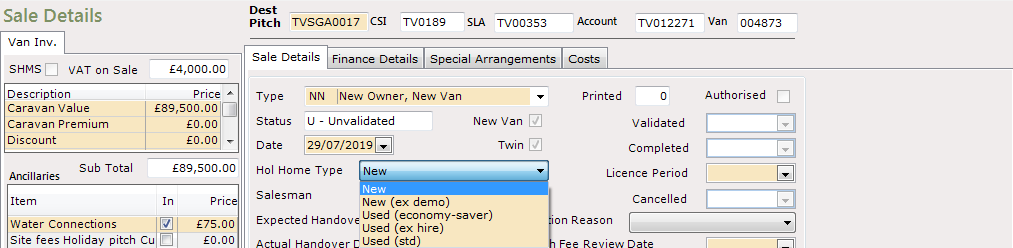
Add the Salespersons initials from the drop-down list at the side of the field.
If the Salesperson isn’t showing in the drop-down list, ensure they have been added to the Salespeople Lookup for the Park the sale is at
The Sale Date will be automatically input, add ‘expected handover date’ using the drop-down Calendar at the side of the field.
In this example there is no P/X as this is a New Owner Sale
In this example there is no Private Sale
The total Sales Value will auto input from the pricing section
Enter any GIA value into the ‘GIA’ field
Enter any Finance Amount
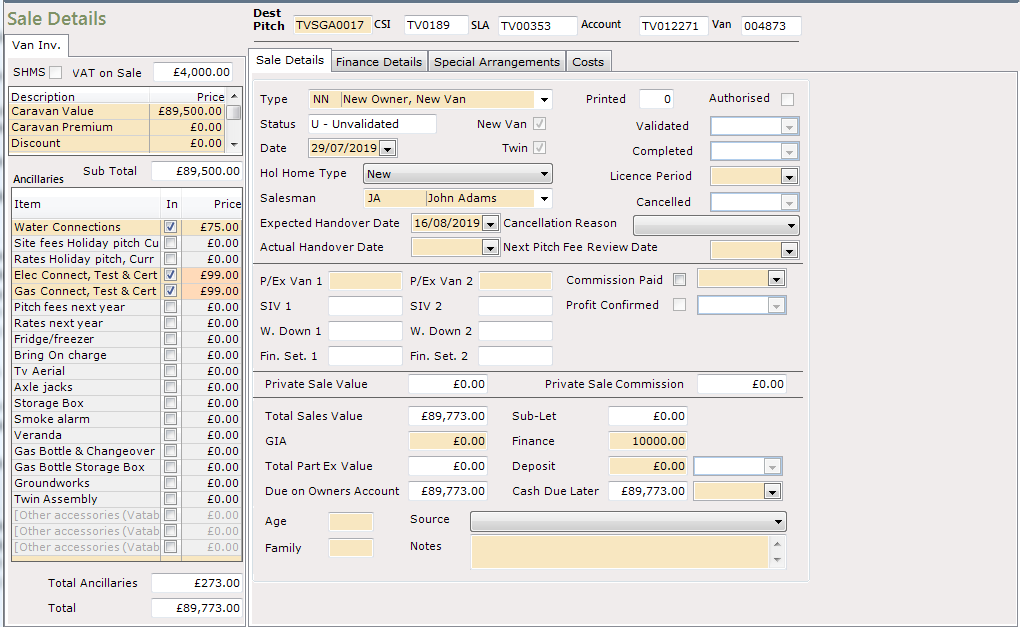
If Finance is entered on the sale, click the ‘Finance Details’ tab at the top of the screen and complete the required Finance details.
Once in the ‘Finance details’ section, click ‘Next’ at the bottom of the screen and the red dots will indicate the mandatory sections, which need to be completed.
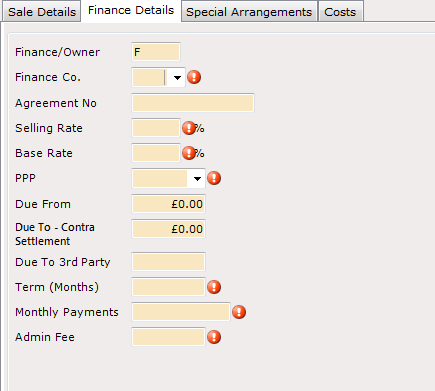
Use the drop-down fields where applicable to select the correct information. If you do not have the Agreement Number, this can be added later; In the ‘PPP’ field, select N/A, in the ‘Due from’ field enter the amount of Finance (as entered on the Sale Details screen). In the ‘Term’ field, enter the agreed number of months for repayment, (this field will only accept 2 digits, so if the agreement is for 120 months, you will need to enter ‘10’ to signify that the agreement is for 10 years).
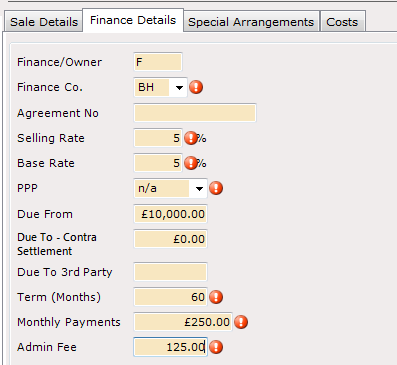
Once all fields are complete, click on the ‘Sale Details’ tab: You will then be returned to the main ‘Sale’ screen.
Enter the Deposit amount and Date taken
Enter the ‘Cash due later’ (Balance of Sale) date in the field at the side, using the drop-down Calendar.
Enter a ‘Source’ from the dropdown list and complete the other fields in this section if you wish.
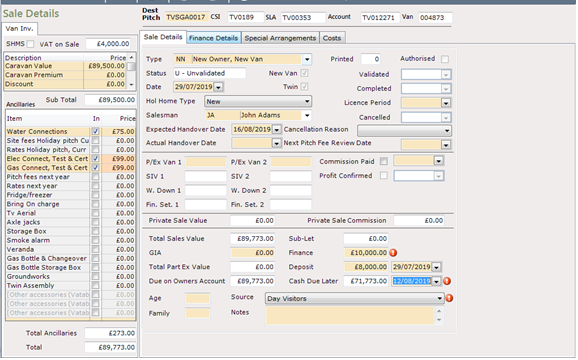
Once all details are complete, click ‘next’.
If everything is correct the screen will move on, if red dots appear then further mandatory information is still required. Hovering your mouse over the dots will display information on what is required.
Click ‘Next’ and the Destination Pitch message will be displayed:
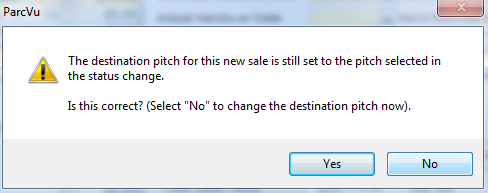
If this is correct click ‘Yes’ (If ‘No’ is selected the Sale Screen will be displayed with a red dot at the side of the ‘Destination Pitch’ field.

Use the ellipses ‘...’ in this field to open up the Park tree and select the required pitch number that the Owner and Van will occupy once the Sale is completed, then click ‘ok’.
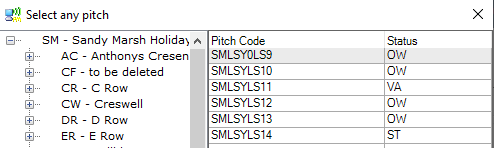
This field is for information only, changing the Pitch Number will not automatically move the unit to the new Pitch
Once done, click ‘Finish’.
The ‘Pitch Details’ screen will then be displayed complete with Pitch Details/Account Details/Van Details/and Sale Details added for this Sale
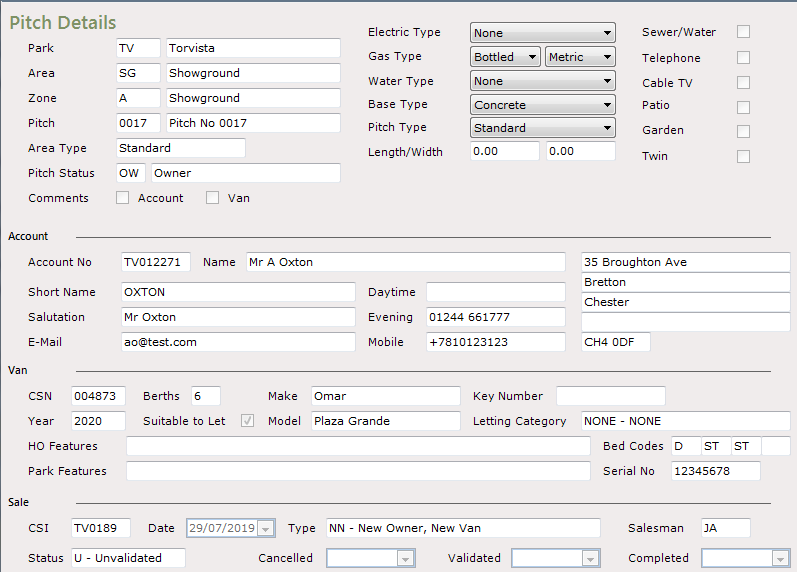
From the Navigation list on the right-hand side of the screen select ‘View Sale Details’, you will then be returned to the Sale Details screen, to allow you to check over the Sale details
To ‘View Profit’, from the Navigation list on the right, select ‘View Profit’ (if shown), to check the margin.
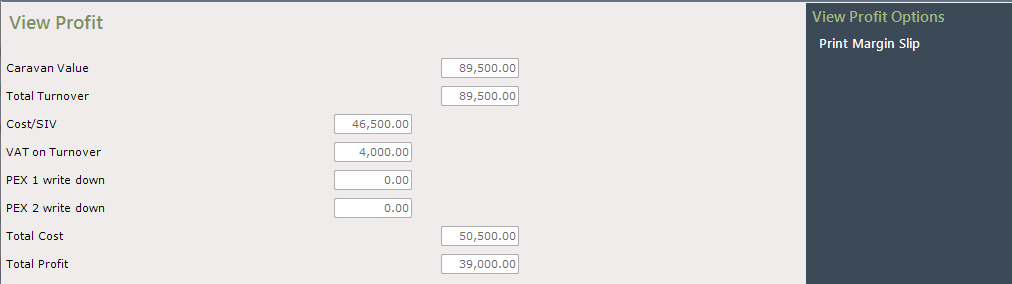
To print out this information, click on ‘Print Margin Slip’ on the Navigation list on the right-hand side of the screen. Click on the Back Arrow at the top left of the screen to return to the Sale Details screen.
There is a User Right called 'Can View Sale VAT Calculation', users with this right will see an option on the navigation list on the Sales Details screen called 'View Sale Vat’, when selected, a pop up will be displayed showing which Vat Calculation Method is being used for the Sale with a breakdown of the details
When satisfied that all is correct with the Sale Details, select ‘Print Invoice’ from the Navigation list on the right.
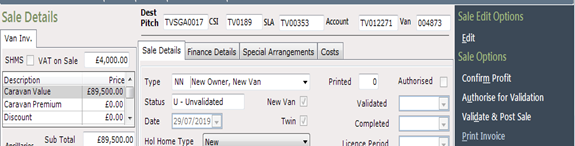
The Sales License Agreement will be displayed on the screen for you to check.
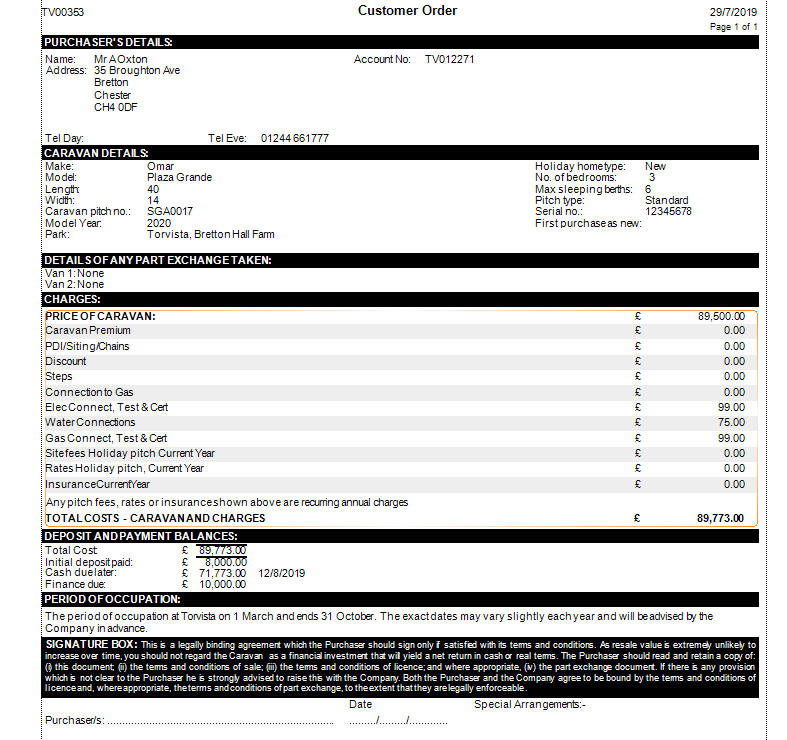
Click on the ‘Printer’ Icon (second one in) at the top left of the screen. Confirm the printer to send the SLA-Sales License Agreement to and click ‘Print’.

Click on the Back Arrow at the top left of the screen to return to the ‘Sale Details’ screen.
The Sale is then finished and is in ‘Un-Validated’ and ‘Un-Authorised’ status.
If amendments are required to any of the Sale Details, click ‘Edit’ from the Navigation list on the right-hand side of the screen and amend the information, click ‘Save’, check again and then select to ‘Print Invoice’ again if all is now OK.