☑️ Search For A Pitch in ParcVu Desktop
Last updated 7 months ago

From the ‘Search’ section of the Main Menu click on ‘Pitch’ By Status or Area
Find Pitch - By Area
The By Area tab is only available if a Park is selected in the top right corner of ParcVu Desktop
Click on the ‘By Area’ tab:
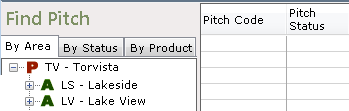
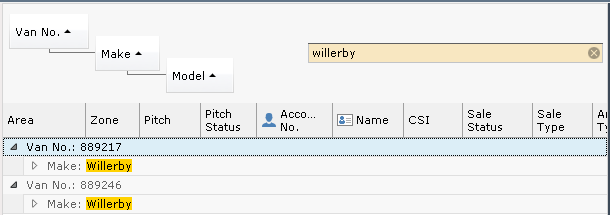
The yellow highlighted search field can be used to search for specific information, enter the detail and the search results will be displayed.

The column headers can be dragged and dropped to group search results.

Find Pitch - By Status
Click on the ‘By Status’ tab
The ‘Pitch Status’ field shows the Status of the Pitch, if the Pitch has an Owner on it, then the Pitch Status field will show OW – Owner, brief details of the Owner Account, Van and any Sale detail will be displayed.
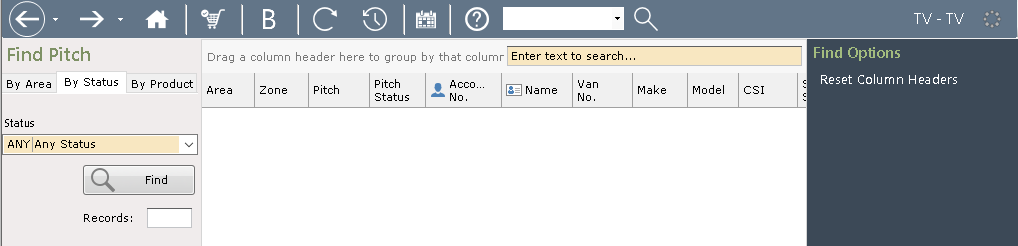
Click on the drop-down list in the ‘Status’ field, all Pitch Status types will be displayed.
Select the ‘Pitch Status’ type you require and then click ‘Find’.
All the Pitches of that Status will be displayed, showing their Pitch Numbers to indicate their location on the park and Van Make / Model and CSN Number (Caravan Stock Number) of the van that is situated on that Pitch.
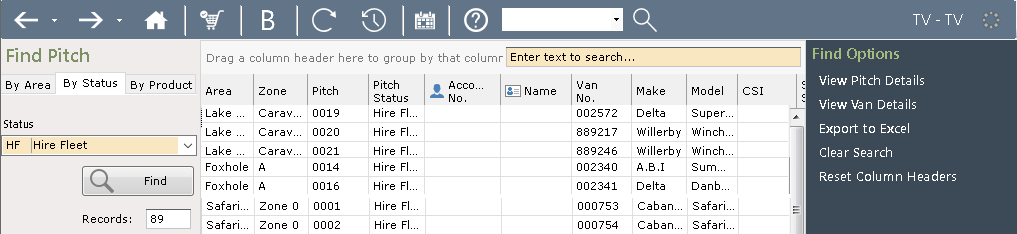
To go into the Pitch Details, either double click on the required Pitch or click on it once to highlight it and the click on ‘View Pitch Details’ from the Navigation list on the right-hand side of the screen.
Find Pitch - By Booking Product
This option is used to identify Touring pitches, which show as vacant, by their Booking Product
Click on the ‘By Product’ tab
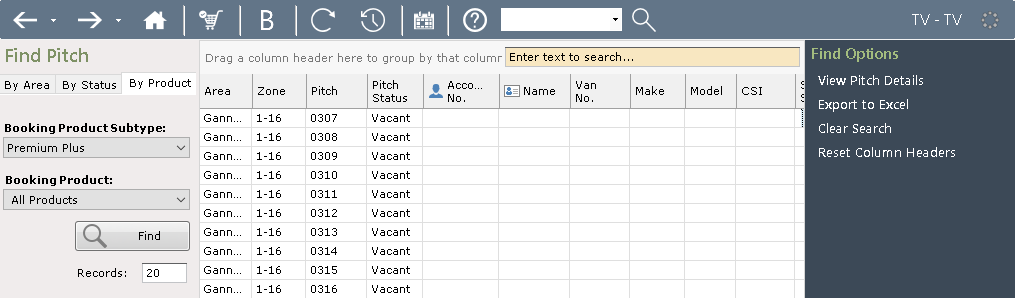
Use the drop-down list in the ‘Booking Product Subtype’ field, next, use the drop-down list in the ‘Booking Product’ field to select the required Booking Product type.
Click ‘Find’ and the selected Pitches will be displayed.
View Zones
Clicking on the plus at the side of an Area will show all the Zones within that Area and then clicking on the Zone will show all Pitches situated in that Zone.

Clicking on <<Back or Next>> at the bottom of the screen will move you forwards and backwards through the pages containing the selected information.
The ‘Z’ - Numbered Zones within an Area can be used to differentiate between the types of Pitches within an Area or split to reflect the reality of that are on park.
To see the Pitches within a Zone, double click on the required Zone.
The Pitches within the Zone will then be displayed.

View Pitch Details
To go into the Pitch Details, either double click on the required Pitch in the list or click on it once to highlight it and the click on ‘View Pitch Details’ from the navigation list on the right-hand side of the screen.
The ‘Pitch Details Screen’ will then be displayed:
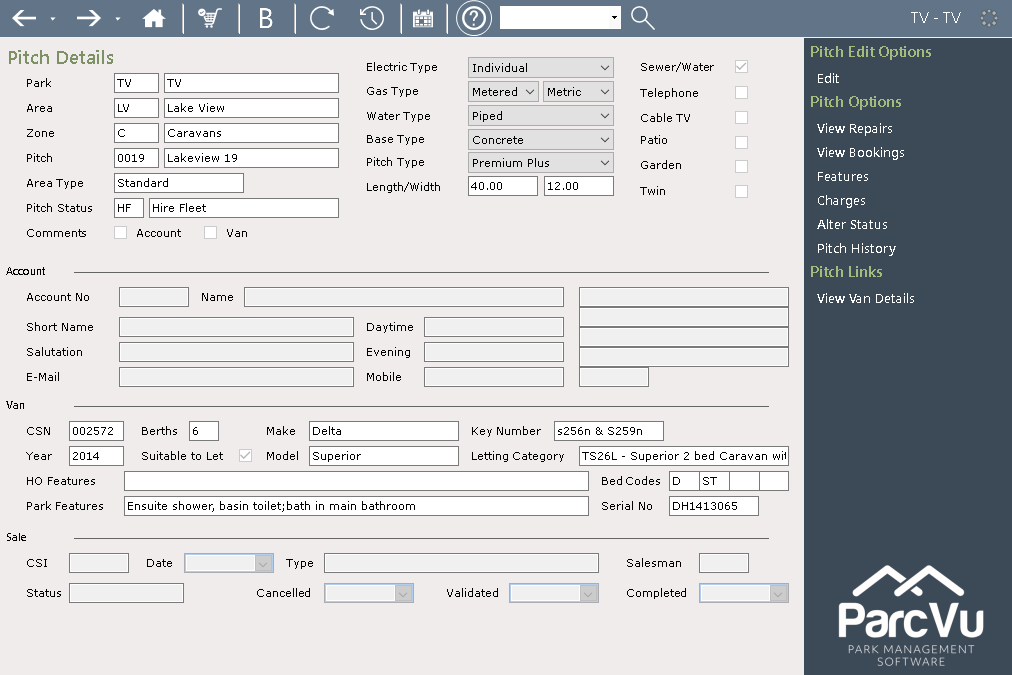
The Pitch Number (eg TVLVC0019) is comprised of
2 Digit Park Code eg TV = Torvista
2 Digit Area Code eg LV = Lake View
1 Digit Zone Number eg C = Caravans (we call this a ‘Number’ but it can be a letter)
4 Digit Pitch Number eg 0019 = Physical Pitch Number (this can also contain letters for example 001A)
Pitch Information
It also displays the physical Pitch Details, i.e. Length/Width, Base Type, Electric and Gas Type etc.
If any of these details are incorrect, they can be amended by clicking on ‘Edit’, from the Navigation list on the right-hand side of the screen. Amend the required details by typing into the required field or selecting from the drop-down list at the side of the required field.
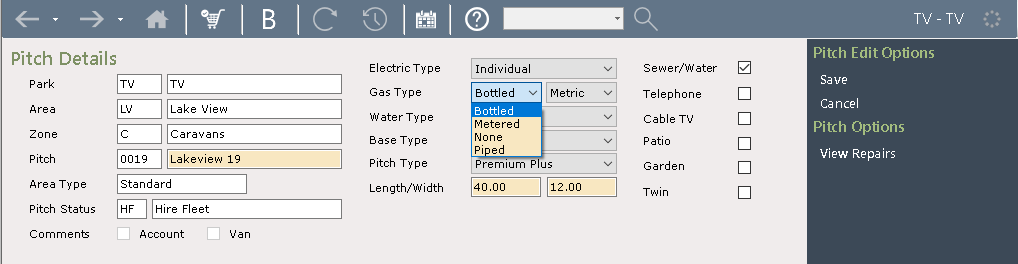
Click ‘Save’ on the Navigation list and the new details will be saved.
Pitch Status
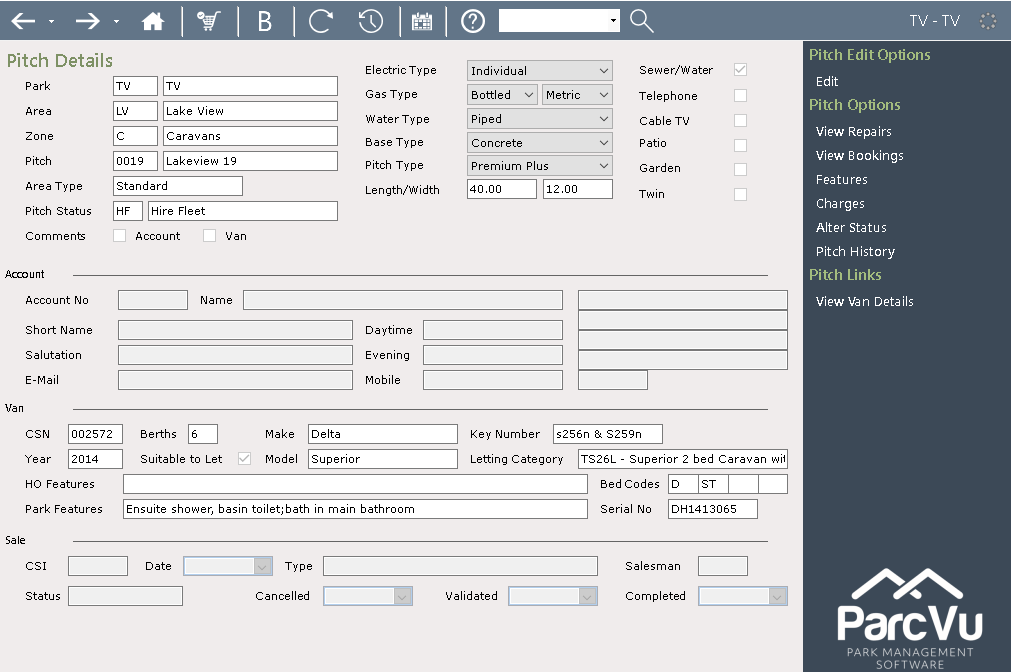
If the ‘Pitch Status’ field shows SA – Sales Van or HF – Hire Fleet, then brief details of the Van will be displayed but the Account and Sale section will be blank.
Geographical Information
A tab called 'Location' has been added to the Pitch Details screen. In this tab are three new fields:
Geotag - Allows what3words.com value to be entered to pinpoint exact spot of a particular pitch e.g. filled.count.soap
Longitude - Allows a value between -180 and 180 up to 6 decimal places to be entered
Latitude - Allows a value between -90 and 90 up to 6 decimal places to be entered

A new merge field has been created for each of these fields: PITCH_GEOTAG, PITCH_LONGITUDE and PITCH_LATITUDE
When the PITCH_GEOTAG merge field is added as a URL in an email template, this will return the full URL address for what3words.com meaning that when the user selects the link, they should be automatically directed to the appropriate what3words.com web page e.g. https://what3words.com/{PITCH_GEOTAG} in above example would send user to https://what3words.com/{filled.count.soap}. To set this up in templates, you will need to select the HTML editor option, shown when editing or creating an email template. The following text will then need to be pasted into the viewer: <P><A href="https://what3words.com/{PITCH_GEOTAG}">https://what3words.com/{PITCH_GEOTAG}</A> </P>
On Email Templates, decimals are always formatted to 2 decimal places. In order to get PITCH_LONGITUDE and PITCH_LATITUDE to return the full value entered the keyword NOFORMAT must be entered after the merge field e.g.{PITCH_LONGITUDE NOFORMAT}. This will allow values up to 6 decimal places to be returned when sending an email using a template with this functionality in it.