☑️ Editing Nominal Codes in ParcVu Desktop
Last updated 10 months ago
To access this area of the system, the user must have Allow System Maintenance Menu and Amend Nominals (H/O Only) user permissions, and must be set as a Head Office User
Go to System Maintenance Sub Menu > Maintain Nominal Codes


To make a change to the details against a specific Nominal, click onto the required Nominal in the grid to highlight it and then select ‘Edit’ from the Navigation list.

The editable details for this Nominal will then be highlighted below the grid
Use the checkboxes Use in Manual Invoices and Use in Jobs to control whether the Nominal appears in the picklist for the Post Charge/Credit menus and Jobs respectively
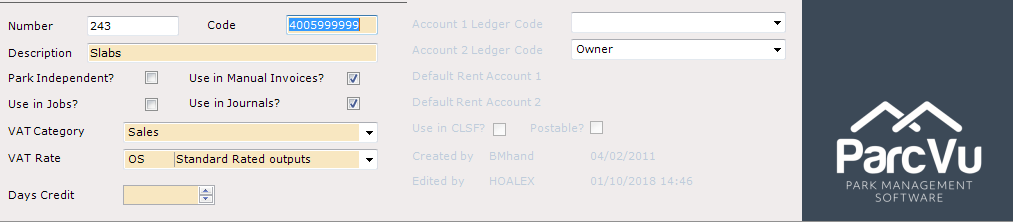
Make the required change(s) and then select ‘Save’ on the Navigation list. The changes will then be updated on the system
Days Credit is often missed out when setting up a Nominal Code - this will default to zero, and means that any items billed using that Nominal will become immediately due. If you have items that you bill on a longer cycle, you should set the number of days before that Nominal is due to be paid.
For example a repair charge becomes due after 28 days, you should set the Days Credit against that Nominal Code to 28 days
Unable to edit a Nominal Code, but have the right permissions? Certain Nominal Codes are System Nominals and can only be edited by ParcVu. This includes Nominals 1-310 but can include others in some situations. If you require a change to a System Nominal, please contact us via email as we will need the request for the change to be in writing
Adding a New Nominal Code in ParcVu Desktop
To add a ‘new’ nominal code, you should edit one of the existing Nominal Codes labelled as BLANK
If you require further blank nominals to be added, you can request this from ParcVu Support via email