Add a Booking Product to a Van (Holiday Home) or Touring Pitch in ParcVu Desktop
Last updated 4 months ago
The Booking Products function in ParcVu Desktop is only available to existing customers who previously signed up for the legacy ParcVu Bookings module. New subscribers will be offered enrolment in the Booking Experts module. Existing customers using legacy Bookings will be offered the opportunity to upgrade to Booking Experts - contact your Account Manager for more information
Once the available Booking Products (grades) are created, they will need to be assigned to the appropriate Holiday Homes or Pitches in ParcVu Desktop so that availability can be set accurately and Bookings can be assigned to the appropriate location
Adding a Booking Product to a Holiday Home or Pitch won’t immediately make that unit available to book. You’ll need to Reset Allocations and Refresh Cached Pricing to ensure availability is correct
If you have recently added a new Booking Product to a Holiday Home or Pitch, you should check the Allocations, then Refresh Cached Pricing as first troubleshooting steps, prior to contacting ParcVu Support
Adding a Booking Product (Grade/Rental Category) to a Holiday Home in ParcVu Desktop
Navigate to the Holiday Home and click into the Bookings Tab
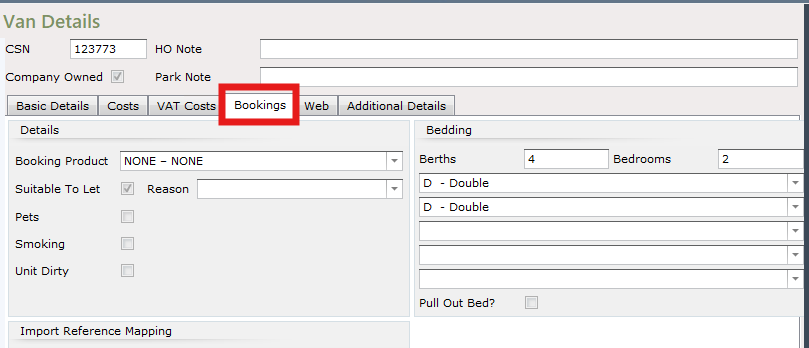
Ensure that ‘Suitable to Let’ is ticked
Select ‘Edit’ from the Navigation list on the right and use the dropdown list on the righthand side of the ‘Booking Product’ field and select the required ‘Booking Product’ to be set to the van
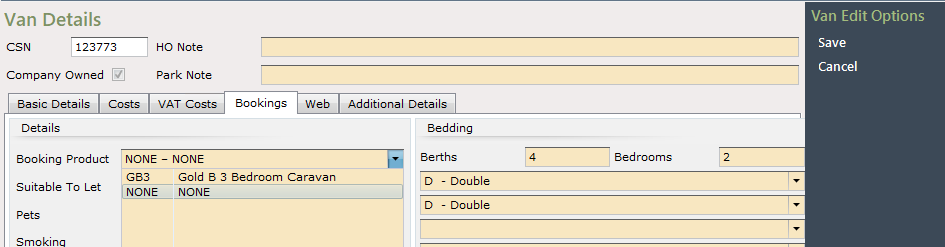
Click ‘Save’ on the Navigation list on the right and the selected Booking Product will be updated to the Van
Don’t see the Booking Product you’re looking for in the dropdown list? Ensure that it’s been made available for the Park by checking Park Booking Products. You can find out more about Park Booking Products here: Make a Booking Product Available At Specific Parks
Adding a Booking Product to a Touring Pitch in ParcVu Desktop
Navigate to the Pitch and select ‘edit’ from the navigation menu on the right hand side
Select the correct Booking Product from the dropdown, then click ‘Save’
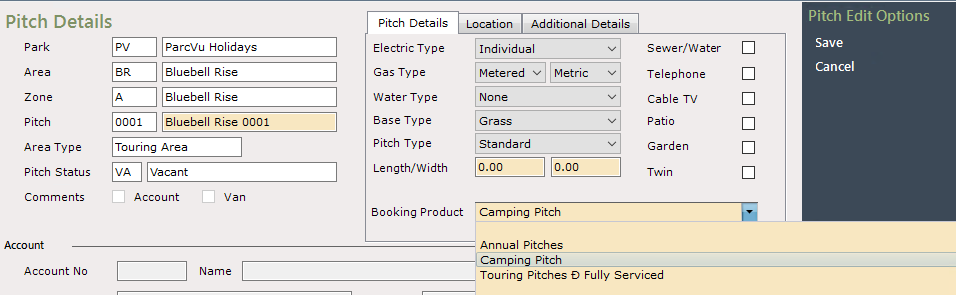
Don’t see the Booking Product you’re looking for in the dropdown list? Ensure that it’s been made available for the Park by checking Park Booking Products. You can find out more about Park Booking Products here: Make a Booking Product Available At Specific Parks