☑️ Search for a Van (Holiday Home) in ParcVu Desktop
Last updated 7 months ago

Selecting this option from the Main Menu, displays the ‘Find Van’ screen
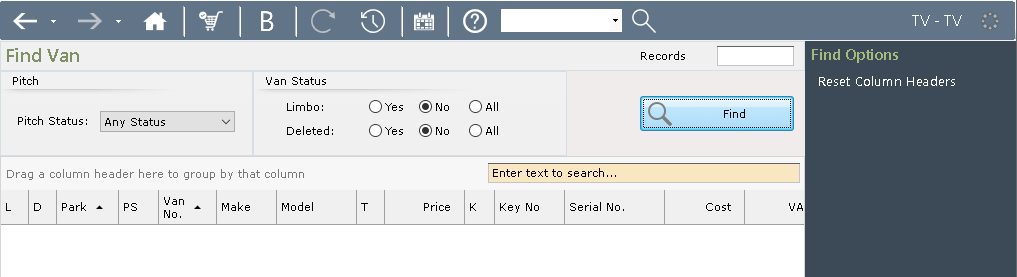
The yellow highlighted search field can be used to search for a Van If you know the Van CSN Number, (CSN - Caravan Stock Number), this is the system generated number given to a van when it is created on the system and stays with the Van for the whole of its life, even if the van is transferred to another Park or enter other specific information and the search results will be displayed.
Find By Pitch Status
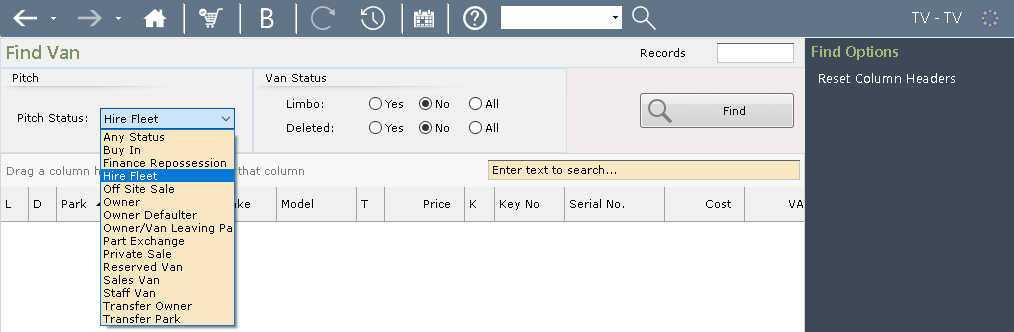
Vans can also be searched for by their ‘Pitch Status’ using the drop-down list option, once selected click ‘Find’ and the results will be displayed.
Find Limbo Vans
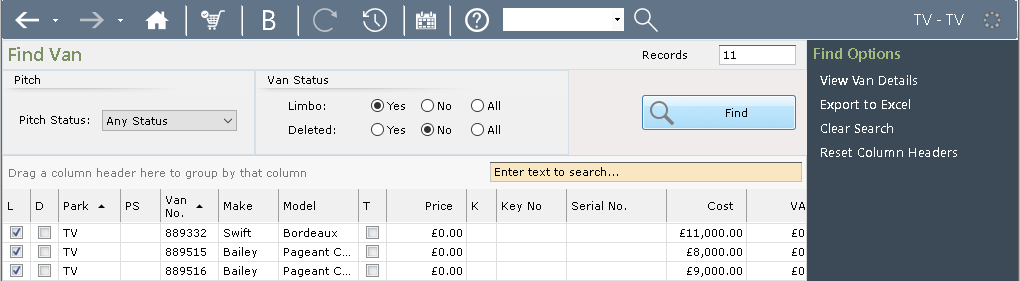
To search for a van which is ‘In Limbo’ (not on a Pitch), the radio buttons need to be set accordingly and the Pitch status drop-down list should show ‘Any Status’
Customise View
The column headers can be dragged and dropped to group search results
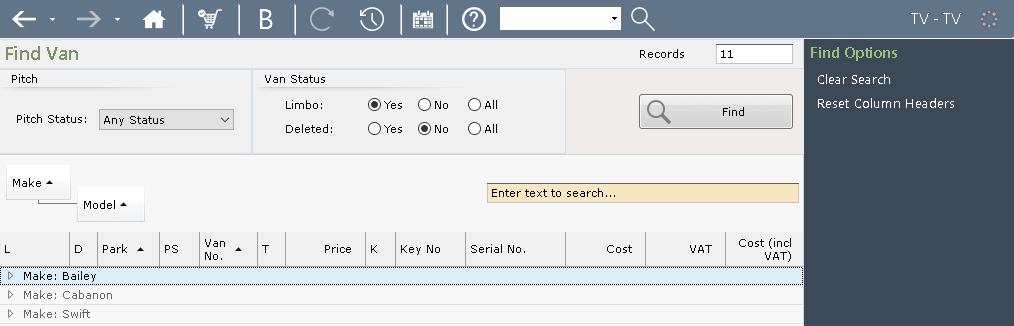
To go into the ‘Van Details’ screen, either double click on the Van or click on it once to highlight it and then click on ‘View Van Details’ from the Navigation list on the right-hand side of the screen.
Van Details Screen
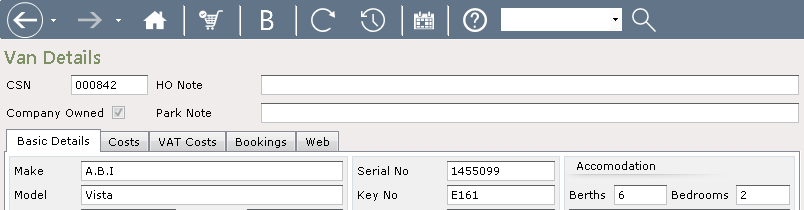
The Van Details Screen will then be displayed:

The ‘Van Details Screen’ shows the Van CSN Number along with all other information about the van, such as: Make, Model, Length, Width, Year, Serial Number, Letting Category and Van Costs etc.
Further information about the Van can be viewed by clicking on the Tabs on the ‘Van Details’ screen.
From the Navigation list on the right hand side of the screen it is possible to select to view other details about the Van, such as, Van History – showing previous details of the Van Status, Van Costs History – showing details of previous Costs on the van, Comments – showing any comments that may have been entered against the Van etc, or you can select to ‘View Pitch Details’ which will display the Pitch Details Screen for the van.
To Amend the Van Details, click on ‘Edit’ from the Navigation list on the Right, enter new or correct details and click ‘Save’, the new details will then be displayed.
