Editing Nominal Codes in ParcVu Online
Last updated 1 day ago
To access this area of the system, the user must have Allow System Maintenance Menu and Amend Nominals (H/O Only) user permissions
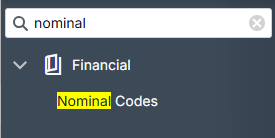
From the System Settings menu, under the Financial option in the sidebar, choose Nominal Codes
The System Settings menu is searchable in ParcVu Online - save time by finding the setting you’re looking for using a key word!
Click into the field(s) you want to edit - the row will highlight in pale green, and once any edits are made the Save button at the top of the screen will activate
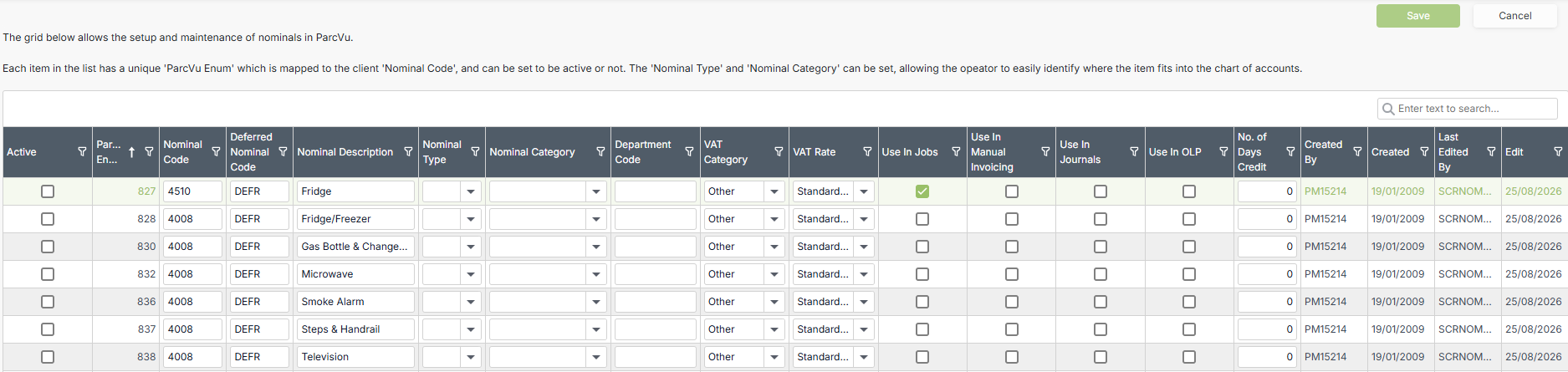
Use the checkboxes Use in Manual Invoices and Use in Jobs to control whether the Nominal appears in the picklist for the Post Charge/Credit menus and Jobs respectively
To add a ‘new’ nominal code, you should edit one of the existing Nominal Codes labelled as BLANK
If you require further blank nominals to be added, you can request this from ParcVu Support via email
Days Credit is often missed out when setting up a Nominal Code - this will default to zero, and means that any items billed using that Nominal will become immediately due. If you have items that you bill on a longer cycle, you should set the number of days before that Nominal is due to be paid.
For example a repair charge becomes due after 28 days, you should set the Days Credit against that Nominal Code to 28 days
Unable to edit a Nominal Code, but have the right permissions? Certain Nominal Codes are System Nominals and can only be edited by ParcVu. This includes Nominals 1-310 but can include others in some situations. If you require a change to a System Nominal, please contact us via email as we will need the request for the change to be in writing