Send an Individual Email in ParcVu Online
Last updated 3 months ago
Communication options are only available if you have the Feature enabled as part of your ParcVu Online subscription. If you don’t see any/all Communication options when selecting Accounts or Prospects, contact ParcVu Support to check if your package includes the relevant Communications module
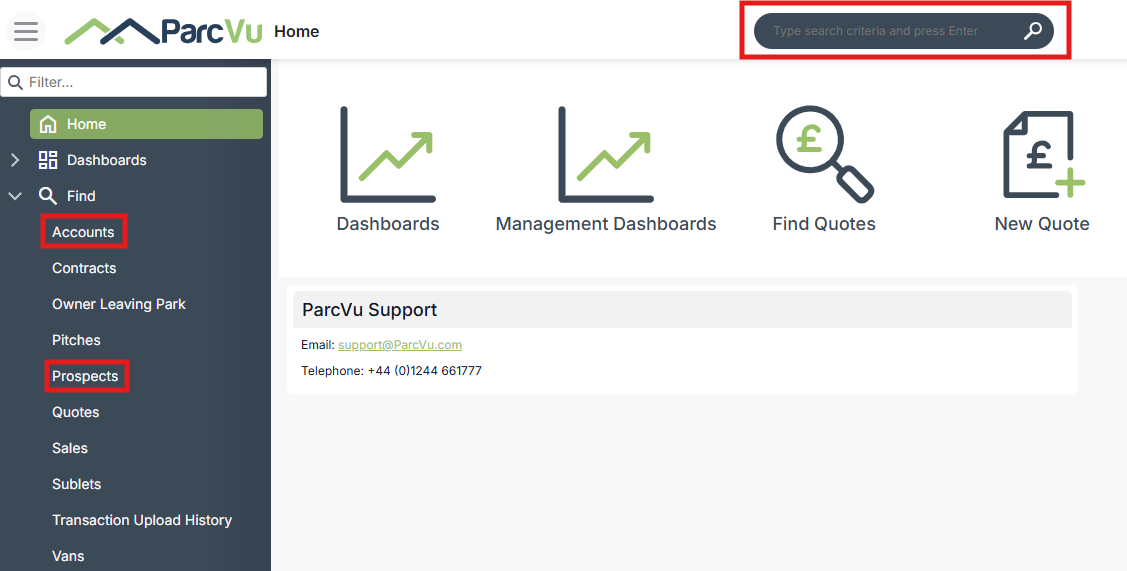
Navigate to the Account or Prospect using the Find Screen or by using the Global Search
Select the 'Communications' drop down, then 'Send Email'

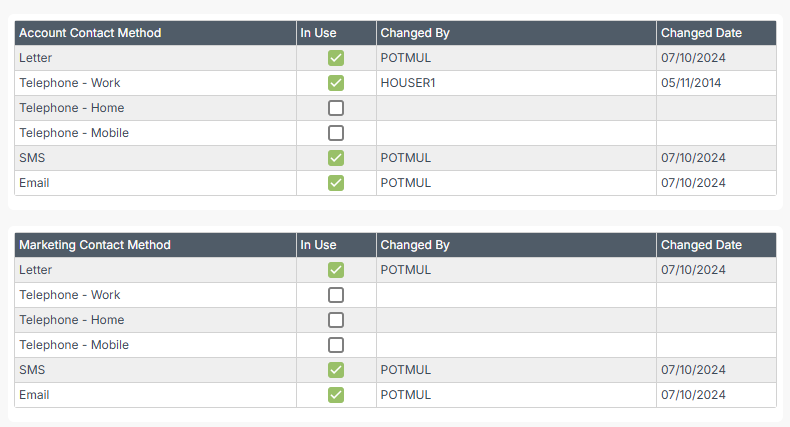
The 'Send Email' option won't show in the drop down if there is no Email address on the Account/Prospect or if the 'Email' flag isn't ticked in contact methods
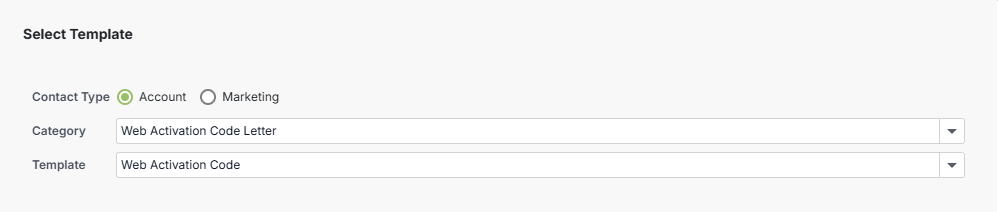
Select the 'Contact Type' - Account or Marketing
Then select the correct 'Category', which will then list the available templates for that category in the second drop down
Select the template required
Then click ‘Create Email’ at the bottom of the popup
The template will then show, allowing you to make changes to the template at this point.
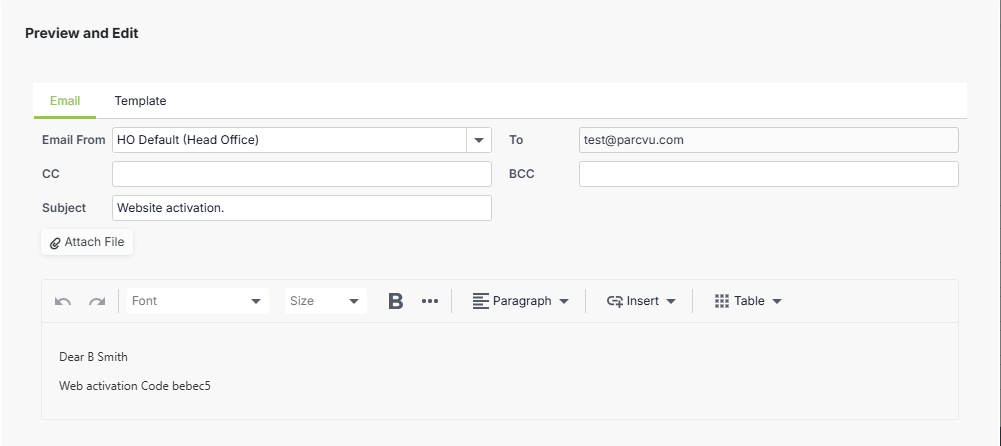
Select the Email From - this is what the Customer will see as the Sender of the Email
You can edit the Email when you're on the 'Email' tab, or you can view the template and merge fields when you select the 'Template' Tab
To edit the Email body, the user will need the Can Edit Documents Before Sending user permission
Enhanced Functionality - Only Available In ParcVu Online
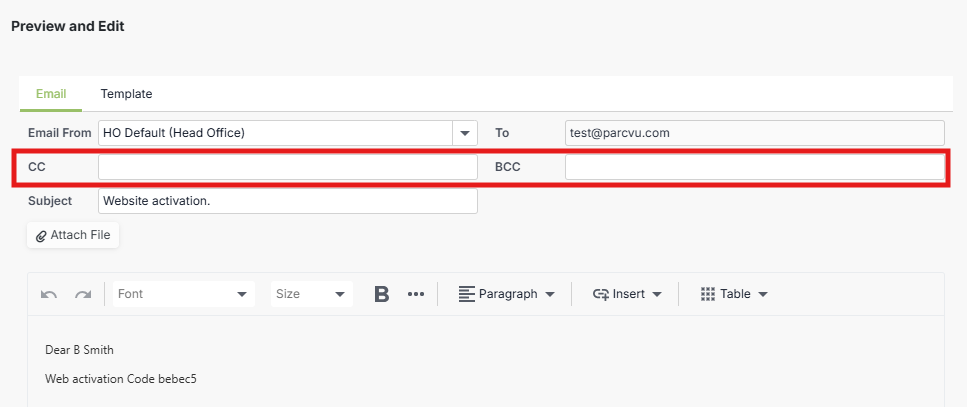
ParcVu Online allows users to set CC and BCC values, so emails can be sent to multiple recipients
Users will need the Can Set CC and BCC on Emails user permission
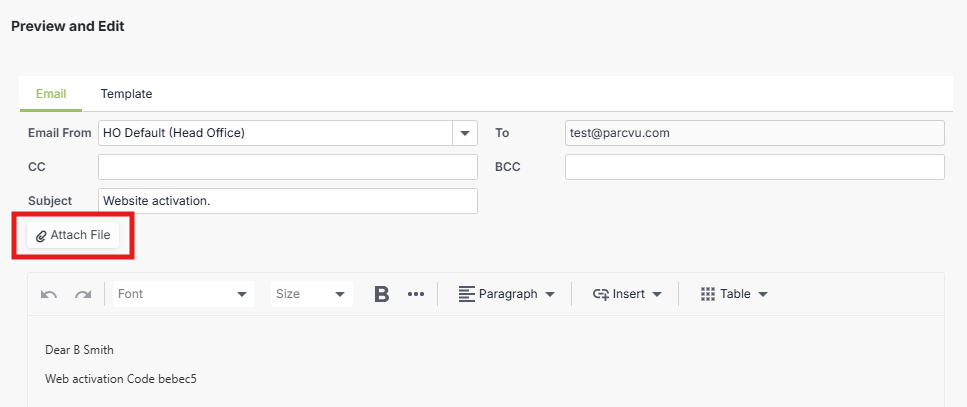
There is also the ability to 'Attach File' to the email. When composing an email, users can browse and select files directly from their computer to include as attachments. Multiple attachments can be added to a single email, including video files, provided they comply with configured system limits
Email attachments are also stored in the communication history for the relevant owner or prospect, allowing attachments to be viewed within ParcVu Online and enabling emails to be resent with attachments if required
Users will need the Can Add Attachments To Emails (ParcVu Online Only) user permission
Once you're happy with the template, select 'send'. You'll then see a screen showing that the e-mail has been sent displaying a green tick
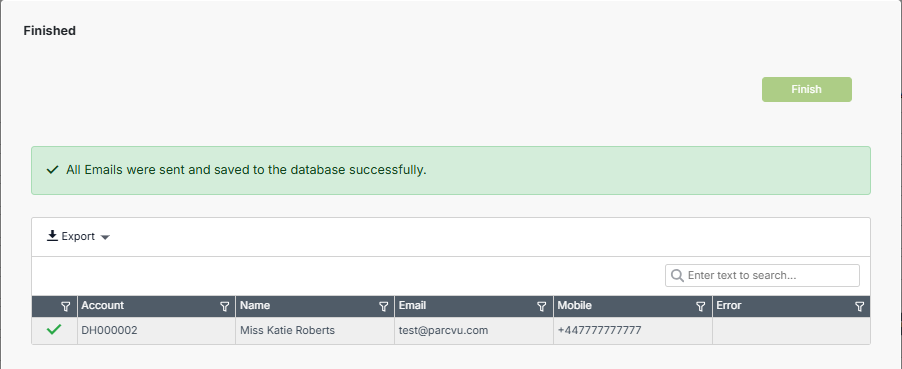
If the Email failed to send, then an error message will show in the 'error' column
Select 'Finish'