☑️ Un-Allocate Cash in ParcVu Desktop
Last updated 8 months ago
There may be occasions when Payments need to be unallocated, I.e. because the Payments have been posted to the wrong account or when the Payments have been allocated against the wrong debt etc.
There are two methods of Un-Allocating: Unsettle This Payment and Unsettle All Payments
Unsettle This Payment (Unsettling An Individual Payment)
To access this function, the user must have the Can Unsettle Payments permission. The option will not display if the user does not have the correct permissions
From the Ledger, select ‘Cash Matching’ from the Navigation list on the right.

The ‘Cash Matching’ screen will now display any Posted Payments waiting to be allocated in the top grid and any outstanding Ledger debts in the bottom grid. Tick ‘Show Settled Entries’ above both top and bottom grids and all previous postings will be displayed

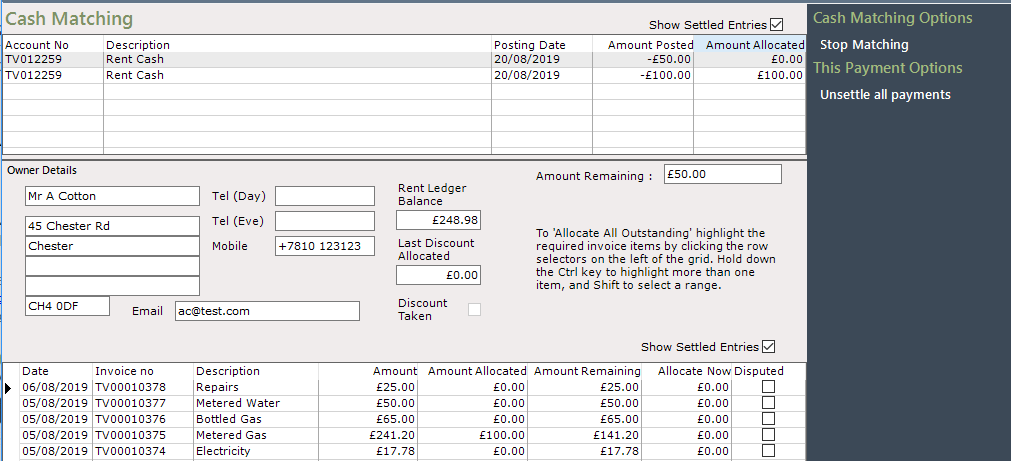
Click on the payment to be Un-allocated in the top grid to highlight it, select ‘Unsettle this Payment’ from the Navigation list on the right and the bottom grid will highlight the entry to indicate which debt the payment was allocated against.
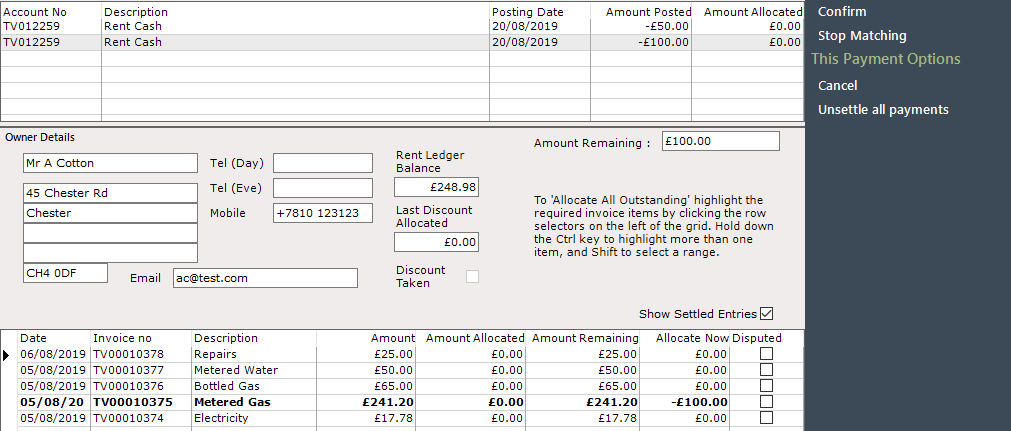
Click ‘Confirm’ on the navigation list and the amount will be ‘Un-Allocated’ the original Payment posted amount will be returned to the top grid, and can then be re-allocated as required, the debt will be adjusted to show that the payment is no longer allocated.
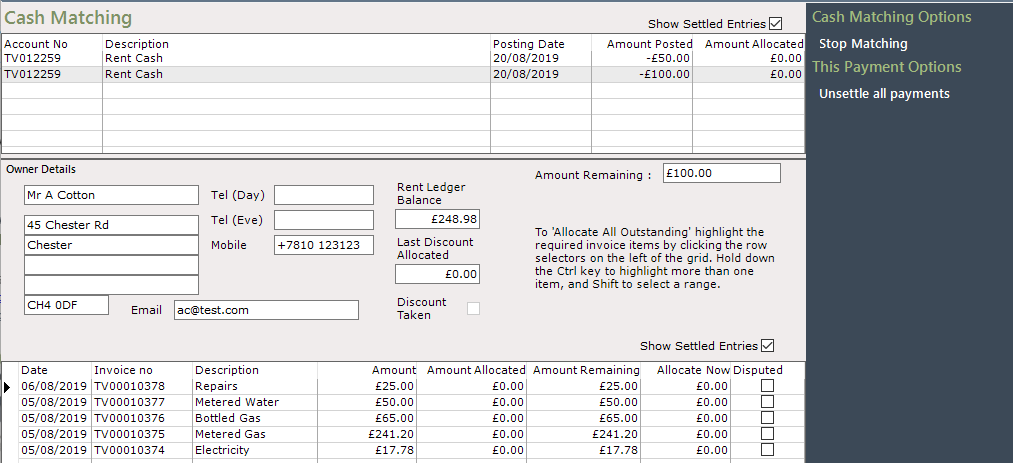
Unsettle All Payments
To access this function, the user must have the Unsettle All Payments permission. The option will not display if the user does not have the correct permissions
From the Ledger, select ‘Cash Matching’ from the Navigation list on the right.
The ‘Cash Matching’ screen will now display any Posted Payments waiting to be allocated in the top grid and any outstanding Ledger debts in the bottom grid. Tick ‘Show Settled Entries’ above both top and bottom grids and all previous postings will be displayed
From the navigation list on the right, select ‘Unsettle all Payments’
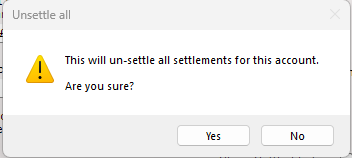
A pop up will warn the user that this action will unsettle all payments on the Account, and prompt them to confirm. Press ‘Yes’ to proceed, or ‘No’ to cancel
This action cannot be undone, and the user must bear in mind that all transactions on the account will require manually re-allocating. If unsure press ‘No’ and double-check with the finance team before proceeding.
All transactions on the account will be unsettled and ready to be rematched