☑️ Make a Cash Sale in ParcVu Desktop
Last updated 8 months ago
Cash Sales are useful for products sold frequently which aren’t managed by normal billing processes, or which you sell to the general public and need to be able to process without an associated Account
To use this function, there must be Cash Sale Products set up - see here for the guide on how to create or edit these: Set Up Cash Sale Products in ParcVu Desktop
Cash Sales is only available when a Park is selected in the top right corner of the screen. This option will be greyed out if All Parks are selected
Cash Sales in ParcVu Desktop: Quick Access
To use this function, the user will need the Cash Sale permission. This option will be greyed out if the user does not have the correct permissions
Click on the tab along the top toolbar in ParcVu


The Cash Sale screen will be displayed.
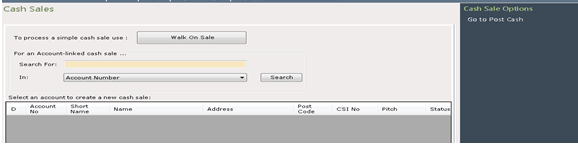
Cash Sales in ParcVu Desktop: Ledgers Sub Menu
To use this function, the user will need both the Allow Ledgers sub-menu and Cash Sale permissions. This option will be greyed out if the user does not have the correct permissions
Form the Main Menu, select ‘Open Ledgers sub menu’ then ‘Sundry Cash Sales’

The Cash Sale screen will be displayed.
Make a Cash Sale for a ‘Walk On’ customer
A Walk On sale is where you want to sell something to a customer without it being linked to a specific Account or Booking. The transactions will be posted to the CASHSALE account, as they need to be allocated somewhere.

Click on the button, and the Cash Sale screen will be displayed.
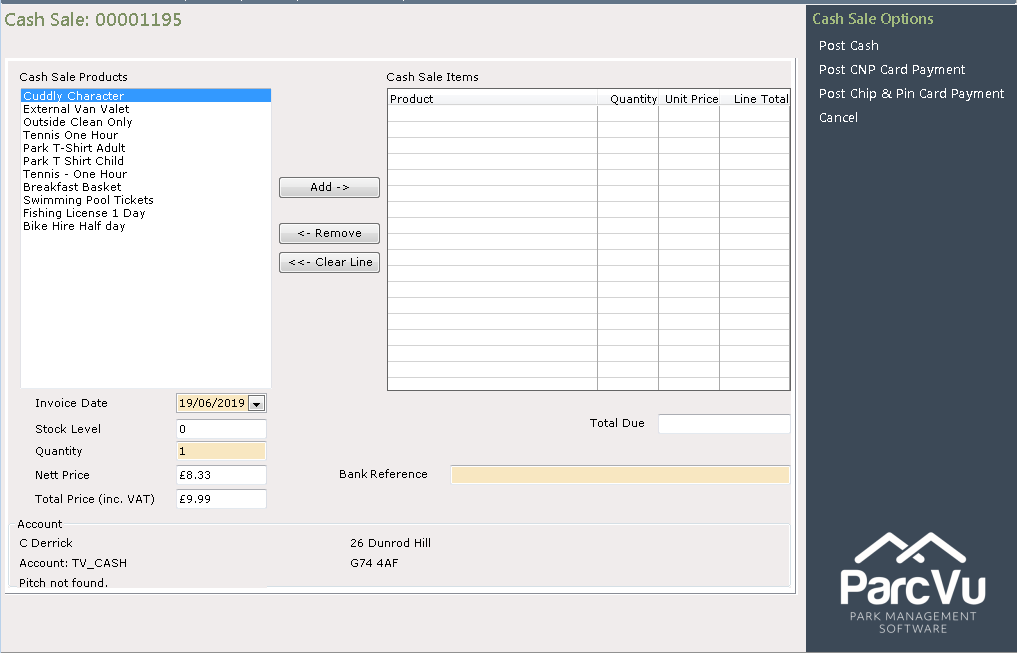
Select the required item from the ‘Cash Sale Products’ list by clicking onto it, the price of the item will be shown below the list, showing Nett and Gross prices.
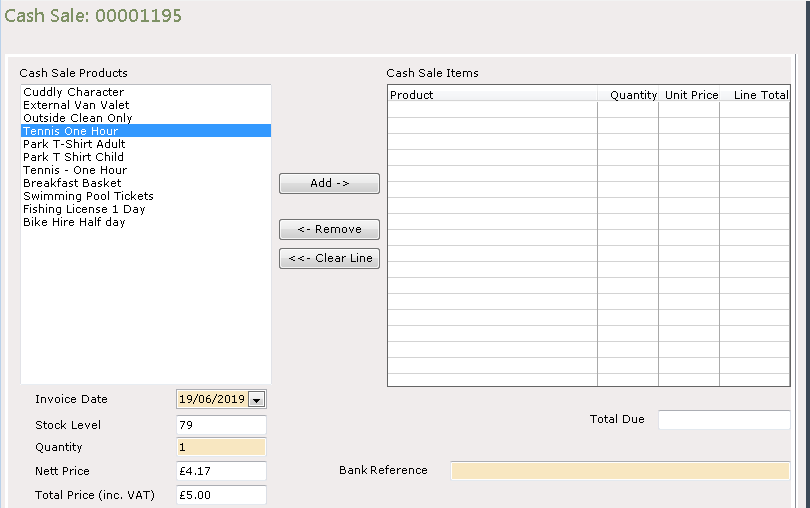
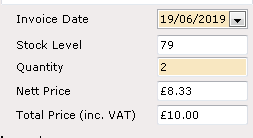
The quantity defaults to ‘1’, if more than one of the selected item is required, overtype the ‘1’ with the required quantity amount and the price will update accordingly.

Click on the button in the centre of the screen and the selected items will be shown in the ‘Cash Sale Item’ grid on the right.

Select the required payment option from the Navigation list on the right.
Once the payment method is selected a message will be displayed:
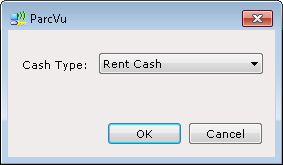
Payments for ‘Walk On’ sales will always be posted to the Rent Ledger of the central account.
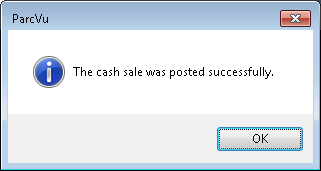
Select ‘OK’, when Post Cash has been selected, a message will then confirm that the Cash sale was successfully posted.
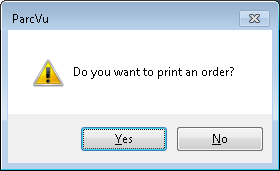
Next, select the printer to send receipt to, the Receipt will be printed, confirm whether you wish to print an ‘Order’ for the item to give to the customer.
The Cash Sale is now complete, and the screen will be cleared for a new Sale to be started if required.
Make an Account Linked Cash Sale
Cash Sales linked to Owners or Bookings are useful for products you sell often, but would like to track which Accounts purchased them. For example, Event Tickets or Additional Passes
Cash Sales to Owners or on Park Booking guests can be started by searching by:
Account Number
Shortname
Pitch Number (this applies to Owners only)
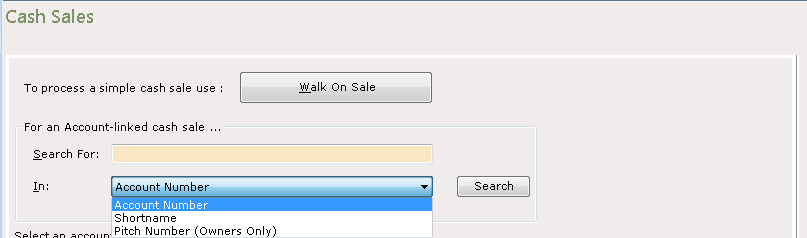
Select the required search method from the drop-down list in the ‘In’ field


With ‘Shortname’ selected, enter the required name in the ‘Search for’ field and click on the tab. All accounts with matching (or part matching shortname) will be displayed.
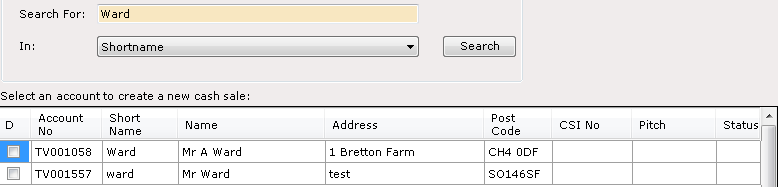
Both Owner and Booking accounts will be returned on the list, click on the required account in the list and select ‘New Sale’ on the Navigation list.
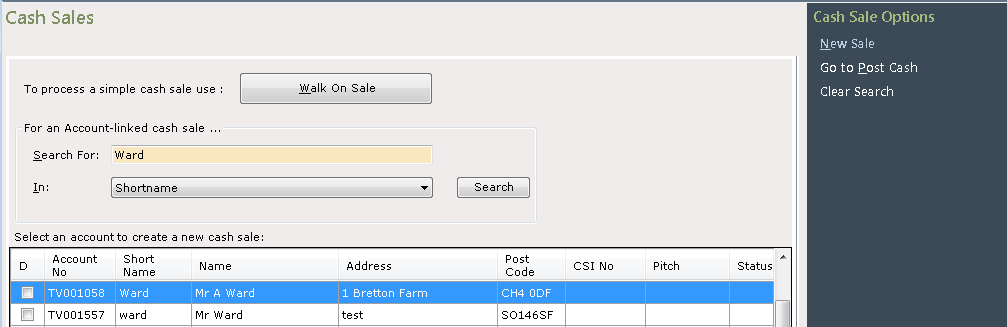
The screen will be refreshed, and the selected guests account displayed at the bottom of the screen, if the selected account is a Booking Account ‘Pitch Not Found’ will be shown below the Name and Account, an Owners Account will show the true Pitch number for the selected Owner.

Select the required item from the ‘Cash Sale Products’ list by clicking onto it, the price of the item will be shown below the list, showing Nett and Gross prices.
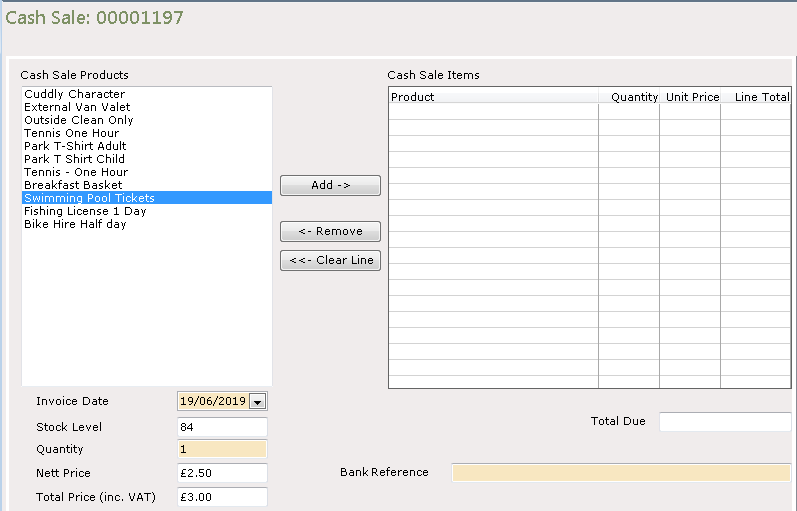
The quantity defaults to ‘1’, if more than one of the selected item is required, overtype the ‘1’ with the required quantity amount and the price will update accordingly.
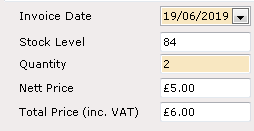

Click on the button in the centre of the screen and the selected items will be shown in the ‘Cash Sale Item’ grid on the right
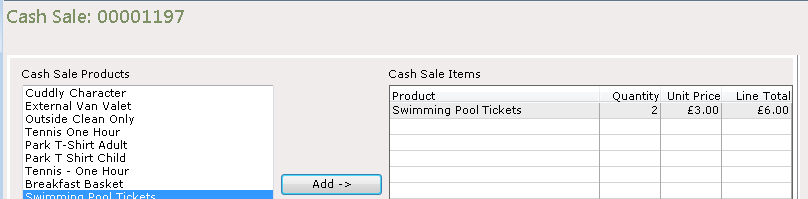
Select the required payment option from the Navigation list on the right.

If there is an outstanding balance on the account, the ‘Ledger Balance Payoff’ pop up will be displayed allowing the customer to pay more than just the amount for the item(s) being purchased in order to pay off some of their outstanding balance
If the customer does not want to do this, click ‘No’, if the customer does want to pay more, enter the extra amount they wish to pay and then click ‘Yes’
Select the required option and click ’Ok’. The system will then confirm that the Cash sale was posted successfully.
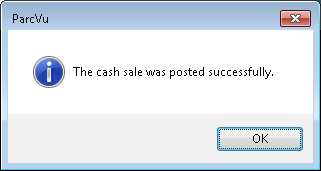
Click ‘Ok’ and select the printer to send the Invoice to.
A further pop up will be displayed asking if you wish to print an order to give to the customer.
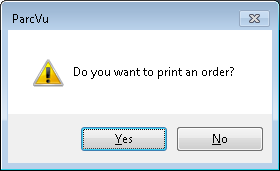
The Cash Sale is now complete, and the screen will be cleared for a new Sale to be started if required.
Navigate to the selected accounts ledger, (Rent or Booking) and the Cash Sale detail will be displayed along with the payment made, either the exact amount or the Sale amount plus any overpayment made as in the below example.
