Assign a Booking in ParcVu Desktop
Last updated 4 months ago
The Booking Assignments function in ParcVu Desktop is only available to existing customers who previously signed up for the legacy ParcVu Bookings module. New subscribers will be offered enrolment in the Booking Experts module. Existing customers using legacy Bookings will be offered the opportunity to upgrade to Booking Experts - contact your Account Manager for more information
When a Booking has been created, it should be assigned to a physical Unit/Pitch - this lets the team know where a customer will be on Park during their stay.
From the Booking details screen, click on the ‘Assignment’ tab.

All available Units/Pitches that exactly match the Product booked will be displayed showing Unit Number – Unit Ref and Pitch Number - Location
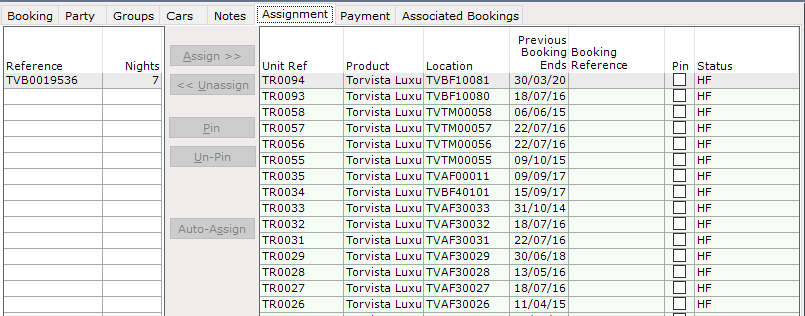
If the booking is for Accommodation, the ‘Status’ column will show whether the available unit is a Hire Fleet – HF or a Sublet unit.
Select ‘Edit’ from the Navigation list.

The ‘Assign’ and ‘Auto Assign’ buttons in the centre of the screen will be highlighted,

Click on the required Unit/Pitch in the grid to highlight it then click on ‘Assign’ button

If the unit you want to assign the Booking to isn’t showing as available, you should check that the unit isn’t already assigned to another Booking, that there are no Repairs for the duration of the break, and that in the case of Sublet units, the Agreement is fully completed
The Booking Ref on the left and the selected Unit/Pitch will all be highlighted in bold, select ‘Save’ on the Navigation list

The booking is now assigned
If ‘Auto Assign’ is selected, the system will select a unit from the list to assign
Booking Assignment History in ParcVu Desktop
On the Navigation list on the right of the Booking Details screen, there is an option to 'View Assignment History'
Click on this option and the 'Assignment History' for the booking will be displayed giving details of the Dates of Assignment or un-assignment and details of who did them.
