☑️ De Duplicate Owners in ParcVu Desktop
Last updated 6 months ago
To use this function, the user will need the Allow System Maintenance Menu” and Allow Owner De-dupe user permissions
Where there are multiple Accounts for a single person, these can be linked together for ease of maintenance. In this article ‘Owner’ refers to both Holiday Home Owners and Holidaymakers, as their records exist in the same database
It is possible to ‘Link’ all the Owner Records together, so that only one instance of the customer Name &Address details will be returned on future Post Code searches for Brochure requests, Sales and when Creating a new Prospect etc
All the original customer Accounts, Owner Accounts and/or Booking Accounts will remain, however, once linked, any changes made to any of the Account Details for the customer, will be changed on ALL the Accounts and not just the one being amended
From the Home Screen, go to System Maintenance Sub Menu > De-Duplicate Owners

The ‘Find’ screen will be displayed.
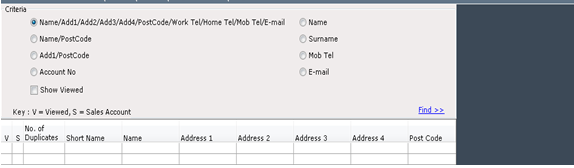
Each of the filter options at the top of this screen can be used to select the required results of a search.
This screen will return details from all Parks - be mindful of this when de-duplicating Accounts from Parks other than the one you’re intending to update
Exact Match (Highly Specific) Searches
Searching by Name/Add1/Add2/Add3/Add4/Post Code/Work Tel/Mob Tel /E-mail

This is a very defined search and the results returned will show Owner Records where all of the above search criteria match, select Find>>and the results will be displayed
Please bear in mind that this search will only return results where every criteria matches exactly - for example an Account with all the same details but different email addresses would not be returned as a duplicate. It’s generally better to do a slightly less specific search
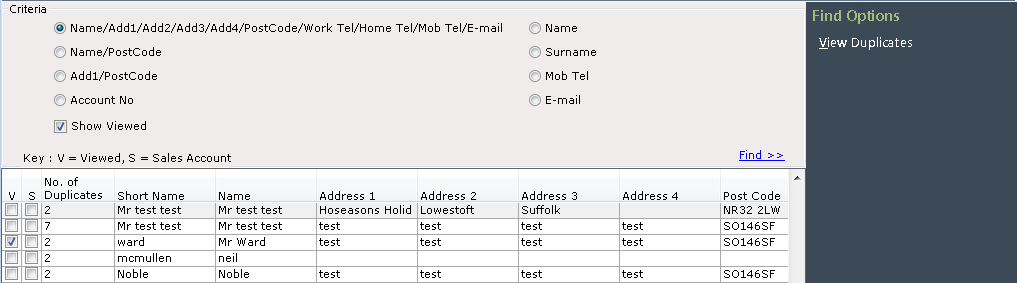
The column on the Left headed ‘No. of Duplicates’ shows how many duplicate instances there are for each customer. Click on the row of the required customer to highlight it and the select ‘View Duplicates’ from the navigation list. The details will be displayed.
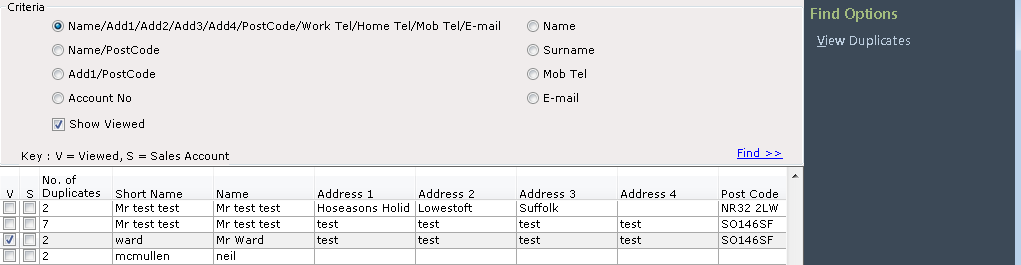
Click on the + on the left of each record to expand the details. The individual ‘Account Numbers’ will be shown against each record, use the scroll bar at the bottom of the screen to scroll through and check the displayed details.

Only Owner Records for the same customer and should be linked, when ready, click on the line of the record that will become the ‘Master’ record to highlight it and select ‘Mark as Master’ from the navigation list. The selected record will then be highlighted in Blue.

When ready select ‘Finish Merging’ from the navigation list. Only select when you are certain.

The original search screen will be displayed again.
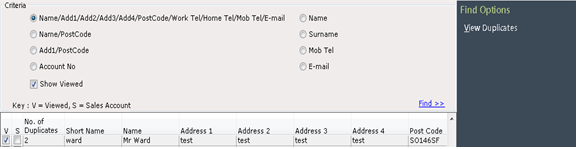
It is possible to see records which ‘Viewed’ during the current session by have been selecting ‘Show Viewed’ and Find>>, the results will then include previously viewed records marked with a ‘Tick’ in the left hand column.
Less Specific Searches
Searching by: Add1/Post Code
Will return results where there are duplicate Owner Records with the same Address Line 1 and Postcode. Clicking on the required line and selecting ‘View duplicates’ on the navigation list will display the details as before. The records can be linked as appropriate following the previous instructions.
Searching by: Account Number
Has a free text field to allow Account Number(s) to be entered and searched on, as does searching by Surname. Click on the required line in the results displayed and select ‘View Duplicates’ from the navigation list and the records with matching ‘Surnames’ will be displayed. Click on the + on the left of the records to view the details, the Accounts can be linked or not linked as appropriate.
If a search returns results and there is no + on the left to open the details when you view the Duplicates, this will be because there are no actual Accounts to link. The duplicate records will probably have been created whilst creating Brochure Requests and no subsequent accounts were created. These records can still be linked together as appropriate using the same procedure as before.