Set Up Hoseasons Settings in ParcVu Desktop
Last updated 4 months ago
The Hoseasons-related functions in ParcVu Desktop are only available to existing customers who previously signed up for the legacy ParcVu Bookings module. New subscribers will be offered enrolment in the Booking Experts module. Existing customers using legacy Bookings will be offered the opportunity to upgrade to Booking Experts - contact your Account Manager for more information
Depending whether you use Hoseasons OneConnect or the legacy Hoseasons Bulk Import, you’ll need to configure different parts of the Client Configuration section in ParcVu Desktop
Enable Hoseasons Import in ParcVu Desktop
To access this function, the user must have the Allow System Maintenance Menu user permission
If you use the Bulk Import Process for your Hoseasons Bookings, you’ll need to enable this setting
From the Home Screen, go to System Maintenance Sub Menu > Client Configuration
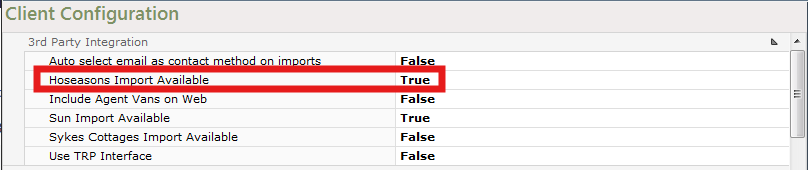
In the ‘3rd Party Integration’ section, ensure Hoseasons Import Available is set to ‘True’ - if set to ‘False’, choose ‘Edit’ from the navigation menu on the right, amend the setting and then 'Save’
Map Hoseasons Extras Booking Products
To access this function, the user must have the Allow System Maintenance Menu user permission
From the Home Screen, go to System Maintenance Sub Menu > Client Configuration
Click on to the ‘Hoseasons Adult Age Group’ line, use the dropdown list facility
To select the age group that the Hoseasons Adult Party Details should be set to in ParcVu.
Continue down this section until all requirements are set. ‘Extras’ and ‘Dogs’ should be set to the Product Code used in ParcVu

When complete, select ‘Save’ from the Navigation list on the right and the ‘Hoseasons Settings’ will now show the set details required.